1 Hardware Imitator M10
1.1 Introduction
Hardware Imitator M10 is delivered programmed to emulate a specific motion device. The Input data (telemetry) from a simulation or a game (SIM) is sent to ForceSeat Platform Manager (ForceSeatPM) which calculates series of required top frame positions. That way user is able to look into Output Diagnostics and see the calculated output telemetry without the machine.
Hardware Imitator M10 connects to the PC via USB.
- Hardware Imitator M10 could be programmed to emulate any PS-series or QS-series machine.
- Hardware Imitator M10 also works with ForceSeatDI.
1.2 Connection
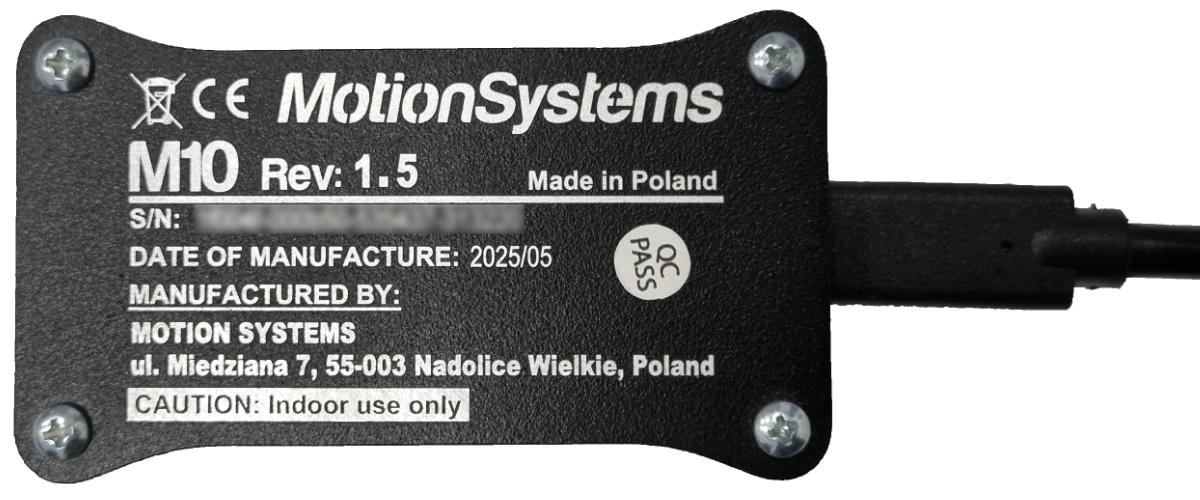
Download and install ForceSeatMI or ForceSeatPM (more information on the software in next section). License code or Serial Number (S/N) will be needed. It is printed on the M10 housing.
After installation Hardware Imitator M10 must be connected to PC via USB type C cable. The
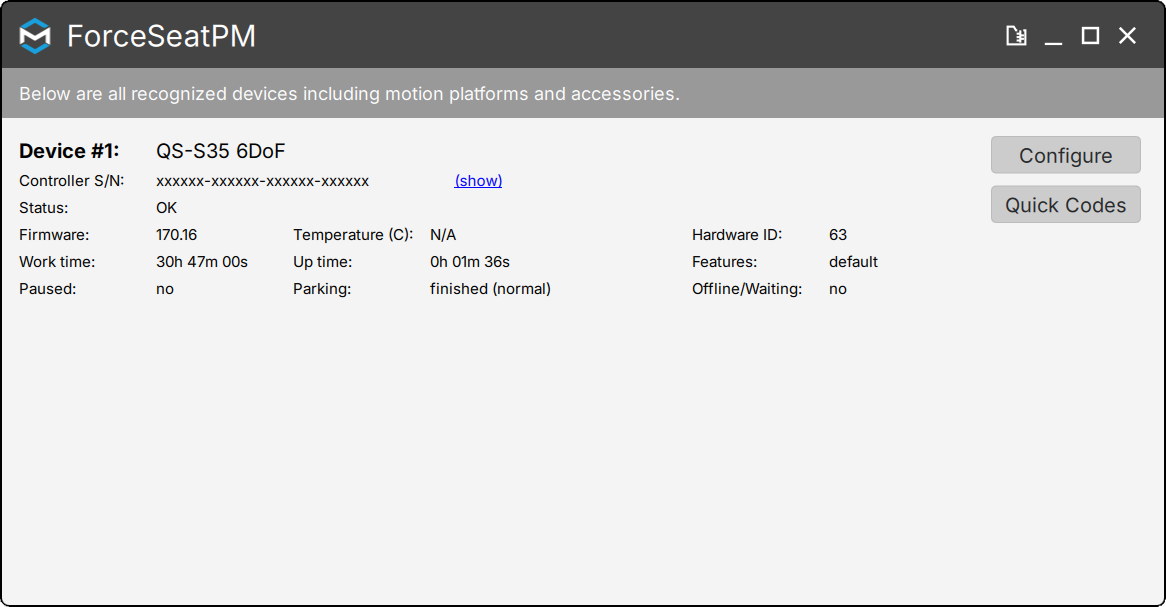
Status in ForceSeatPM will change from
Not connected to
Parked/Centered in the lower left corner of ForceSeatPM. Emulated platform is now connected and ready.
Click on the Icon or go to
Tools and Diagnostics →
Devices to see the status of the device.
1.3 Functionality
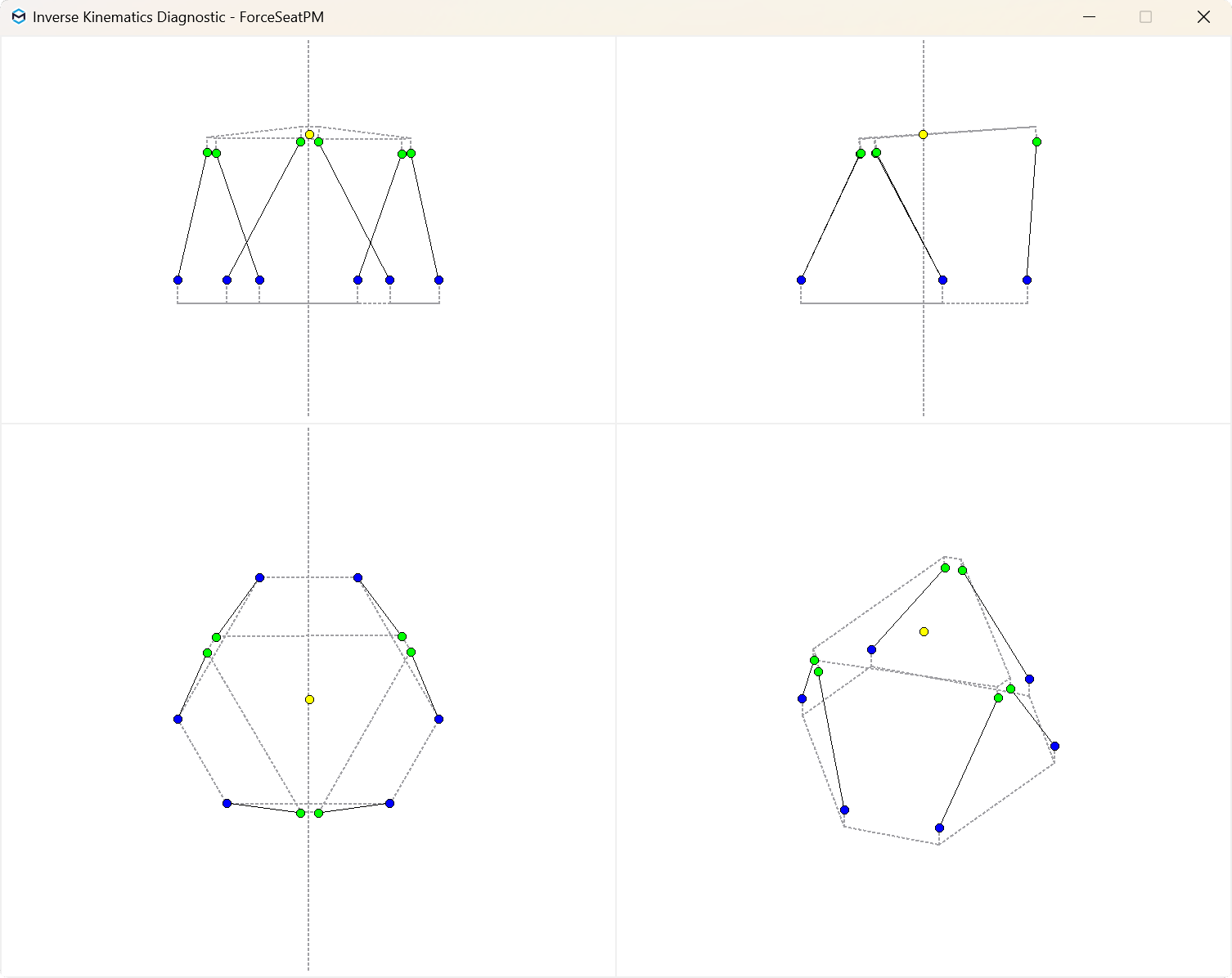
Once the Hardware Imitator M10 is connected - input data coming from the SIM is calculated into top frame positions in real time and Diagnostics data is generated.
Example illustration from ForceSeatPM →
Tools and Diagnostics →
Kinematics Diagnostics:
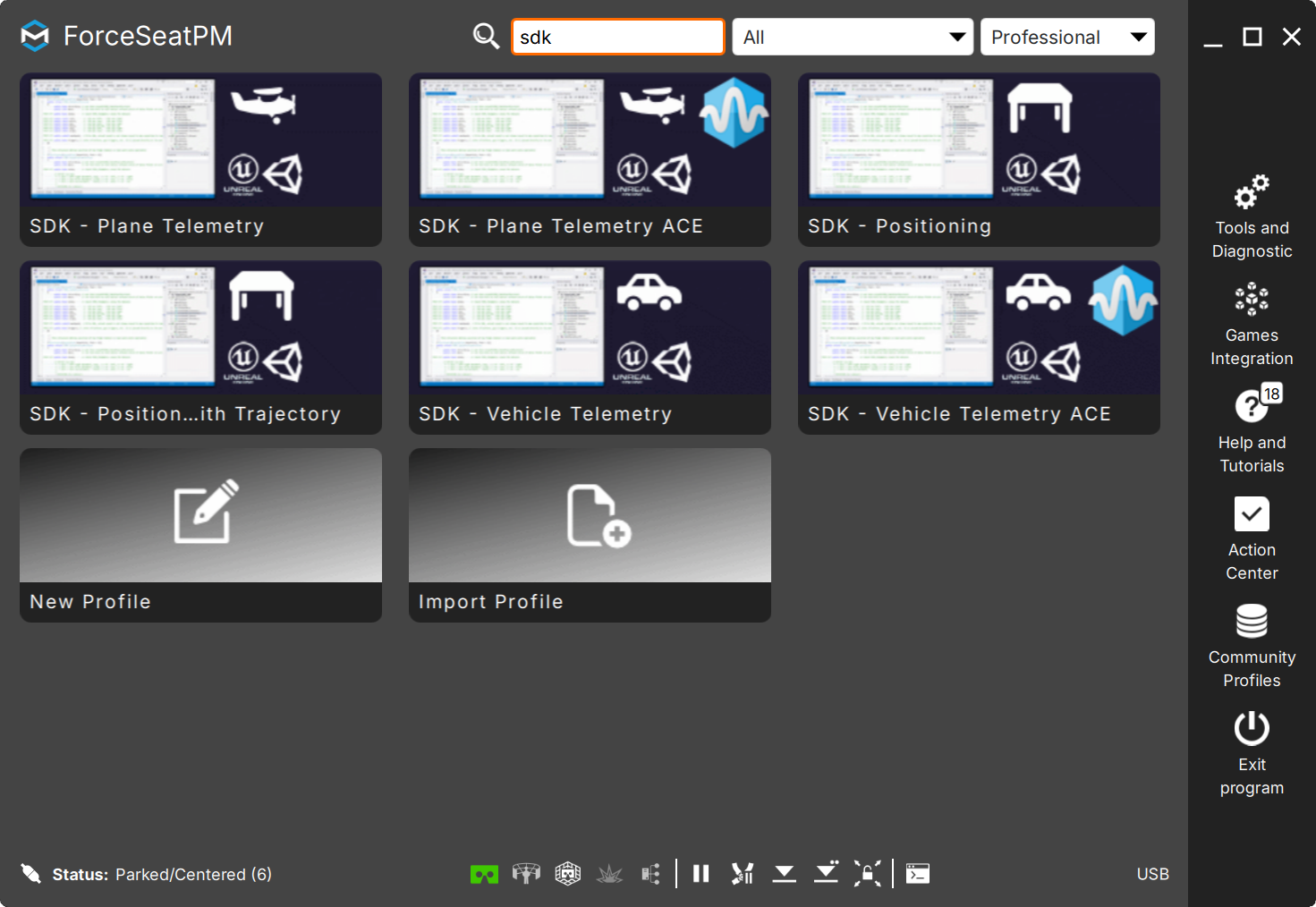
For motion cueing algorithm to work, telemetry input data is needed, which could be generated by a SDK Simulation (Software Developer Kit). It is used by Game developers to generate telemetry data and to simulate top frame motion. For this product activation code is needed.
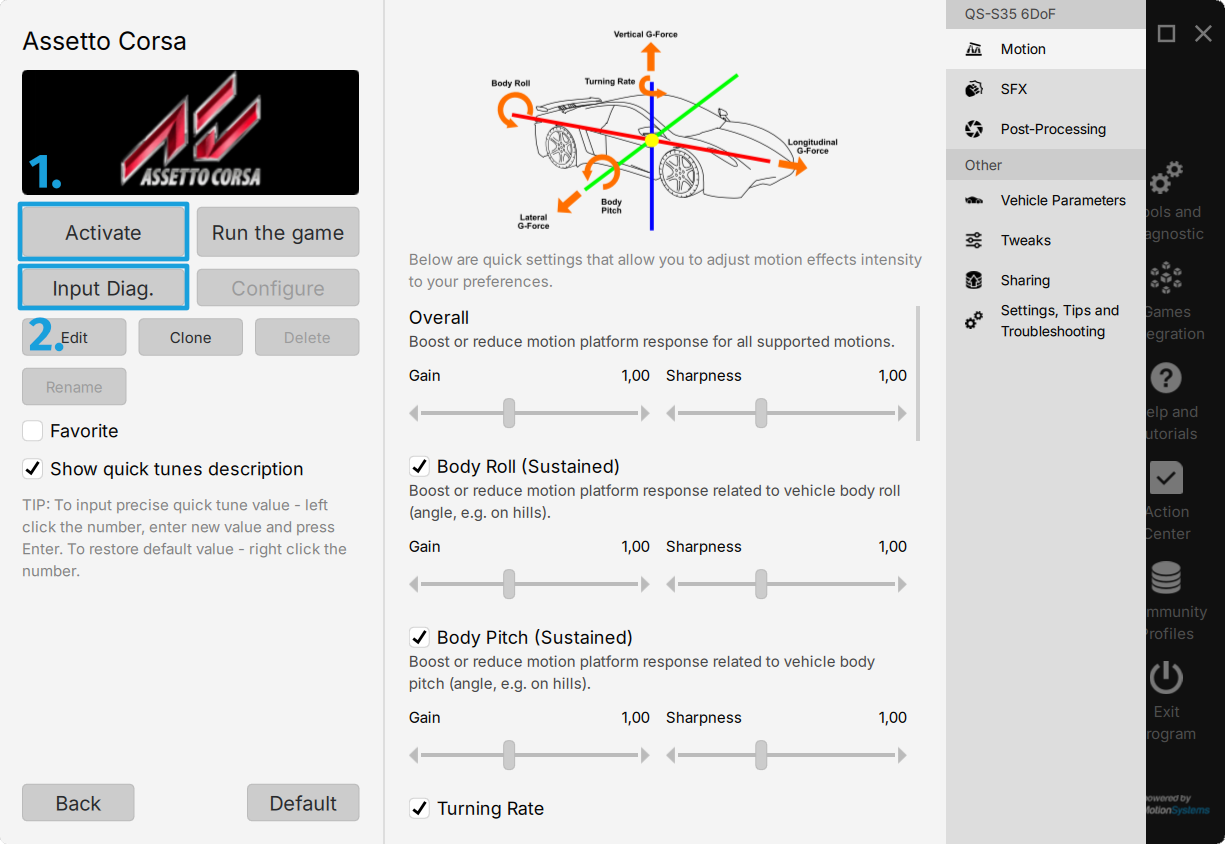
A driving or flying simulation game also could be used to generate telemetry input data. Once it is installed on your PC - select one of the profiles in ForceSeatPM and
Activate it (1).
Then run the game and start a game session. Click
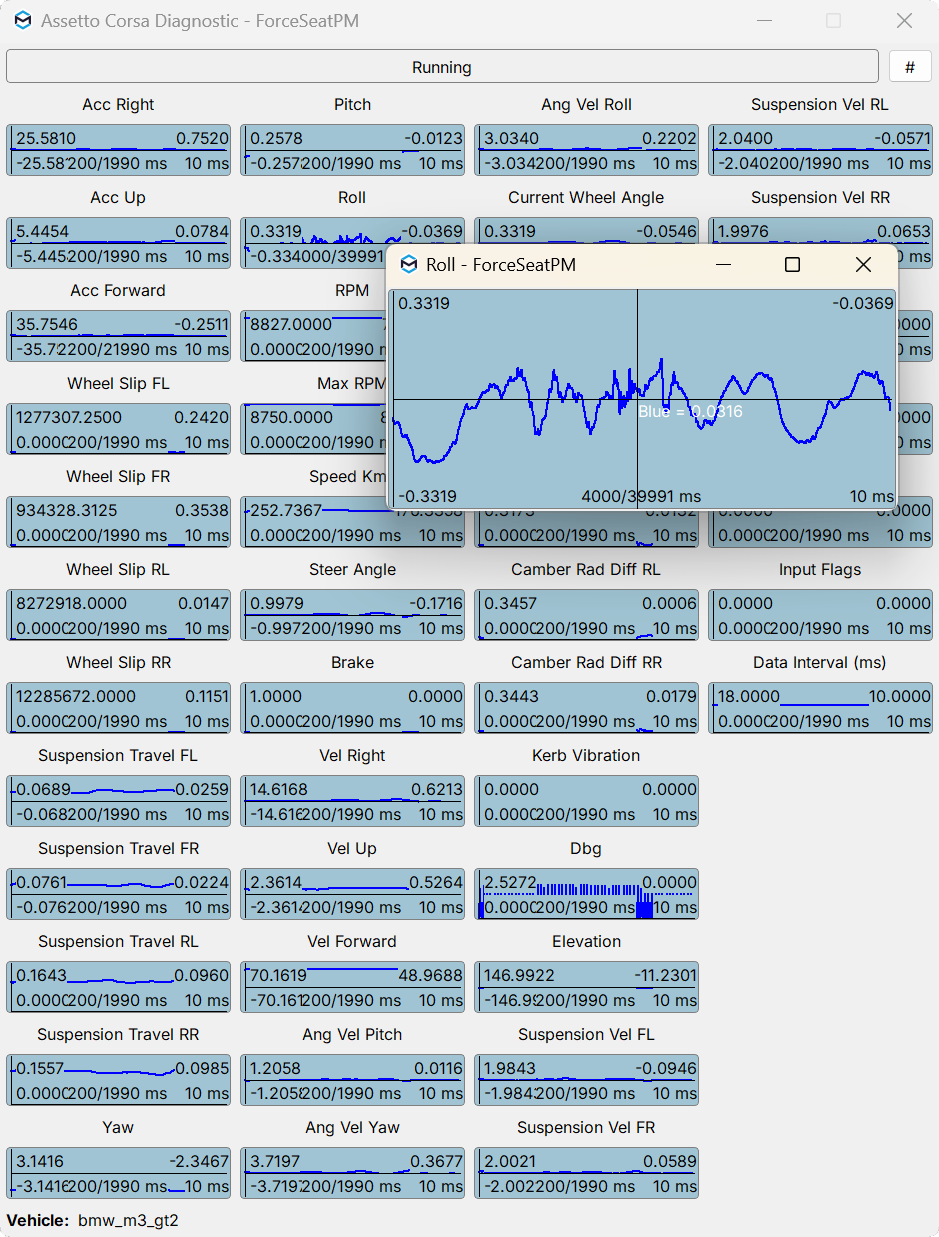
Input diagnostics (2) to see all the telemetry information coming in.
Double-click on a graph to see it in separate window. Right-click on it to see all the options available to adjust the graph.
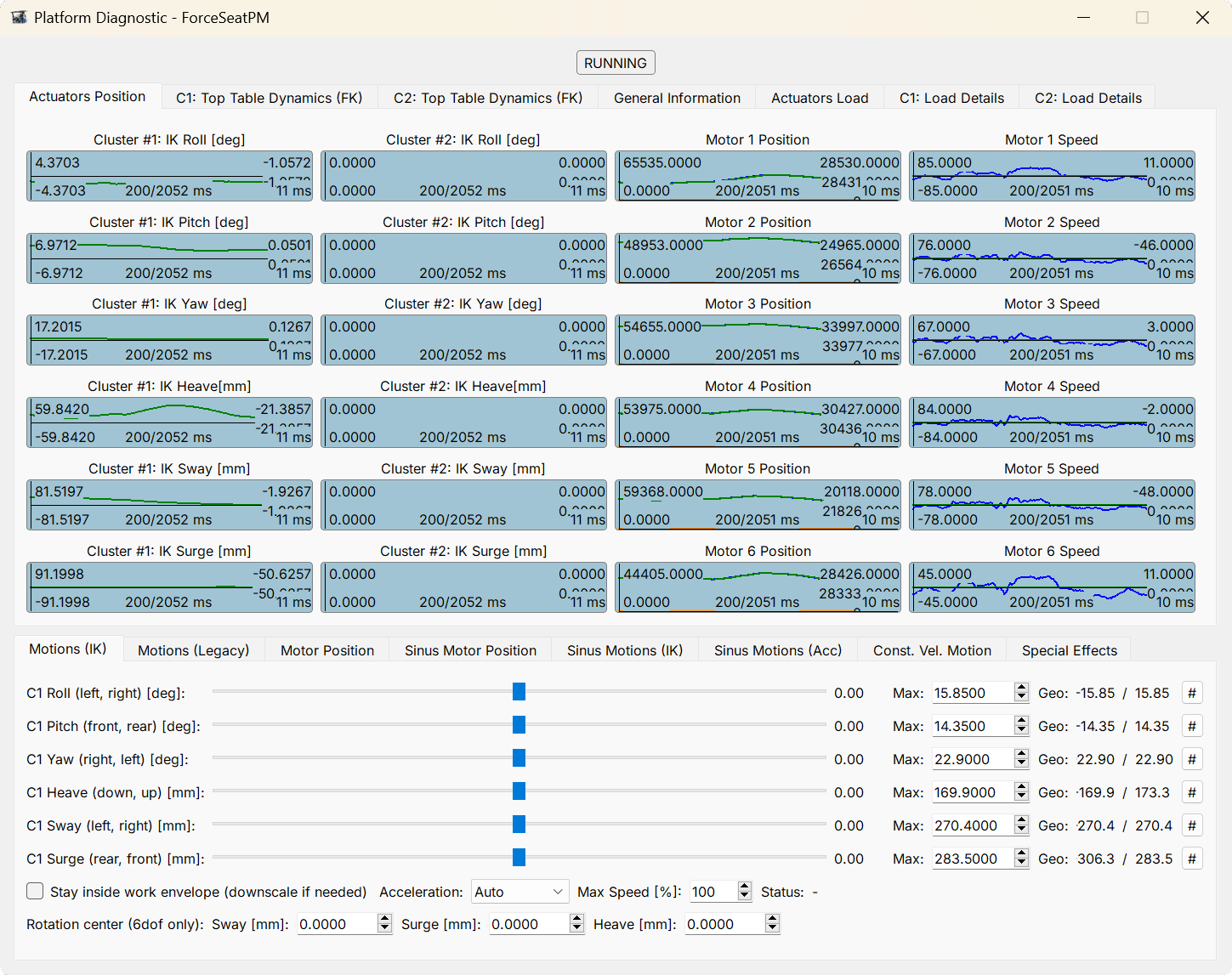
When input data is present and Hardware Imitator M10 is connected, Platform Diagnostics plots all the available information on pop-up graphs.
Using one of the sliders in
Motions (IK) will result in new calculated data being shown on the graphs.
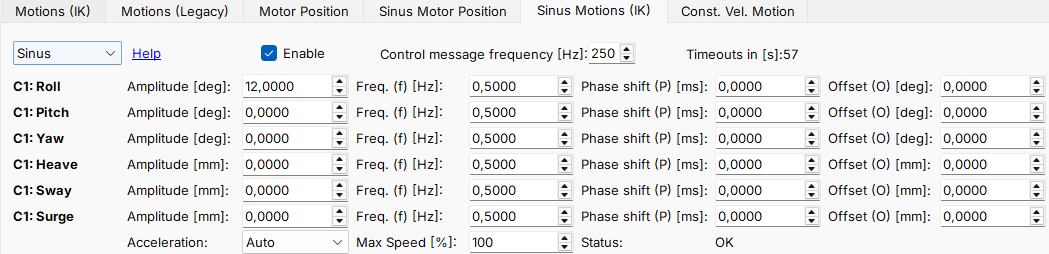
In order to generate a continuos looped movement, go to
Sinus Motions (IK) and enter an
Amplitude value and then click
Enable.
Keep in mind that Platform diagnostics window overwrites the input data from the game.
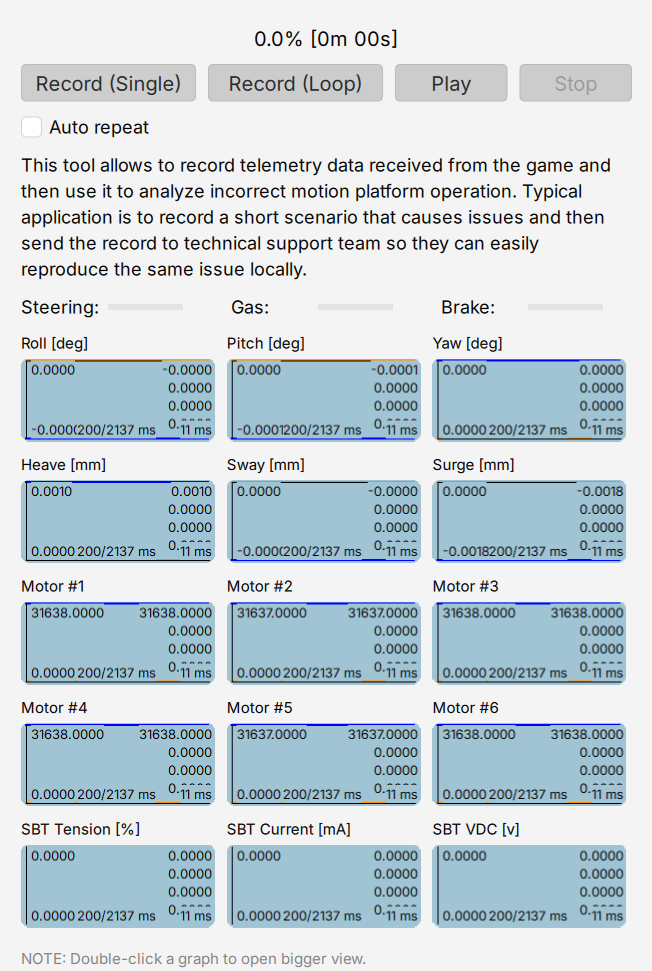
Instead of having to constantly generate a telemetry in the SIM, it is possible to record it and replay it back. Go to
Tools and Diagnostics →
Game Data Playback and record a game session.
Save it to file → click
Play →
Load the file → select
Auto repeat. All output diagnostics will be generated until the recorded file is played in the background.
1.4 Recommended reading
More information on ForceSeatPM software functionality and ACE profile creation is found in Vehicle physics simulation application manual:
More information on Force Seat software family details and functionality is found in user manuals: