Button Box Configuration
Assign button box knobs and rotary encoders to adjust quick tunes and switch profiles.
1 Introduction
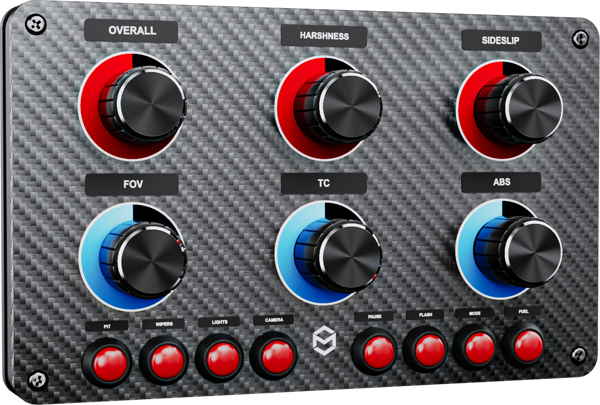
You can assign joystick knob, rotary encoders or other buttons from your buttons box (or a steering wheel) to modify selected quick tunes and adjust motion platform and belt tensioner operation on the go during racing. There is no binding to specific profile, so as long as activate profile contains specified quick-tune (search is performed by name), then its value will be increased/decreased.
2 Configuration
In order to use change quick tunes during game play, you need to assign a knob (2 buttons) to increase quick-tune and decrease quick-tune functions and buttons to cycle between specified quick tunes (at least one button mapped to select next quick-tune, two buttons if you wish cycle in both directions). It is also recommended to assign a button (or two) to activate next favorite profile and active prev. favorite profile functions.
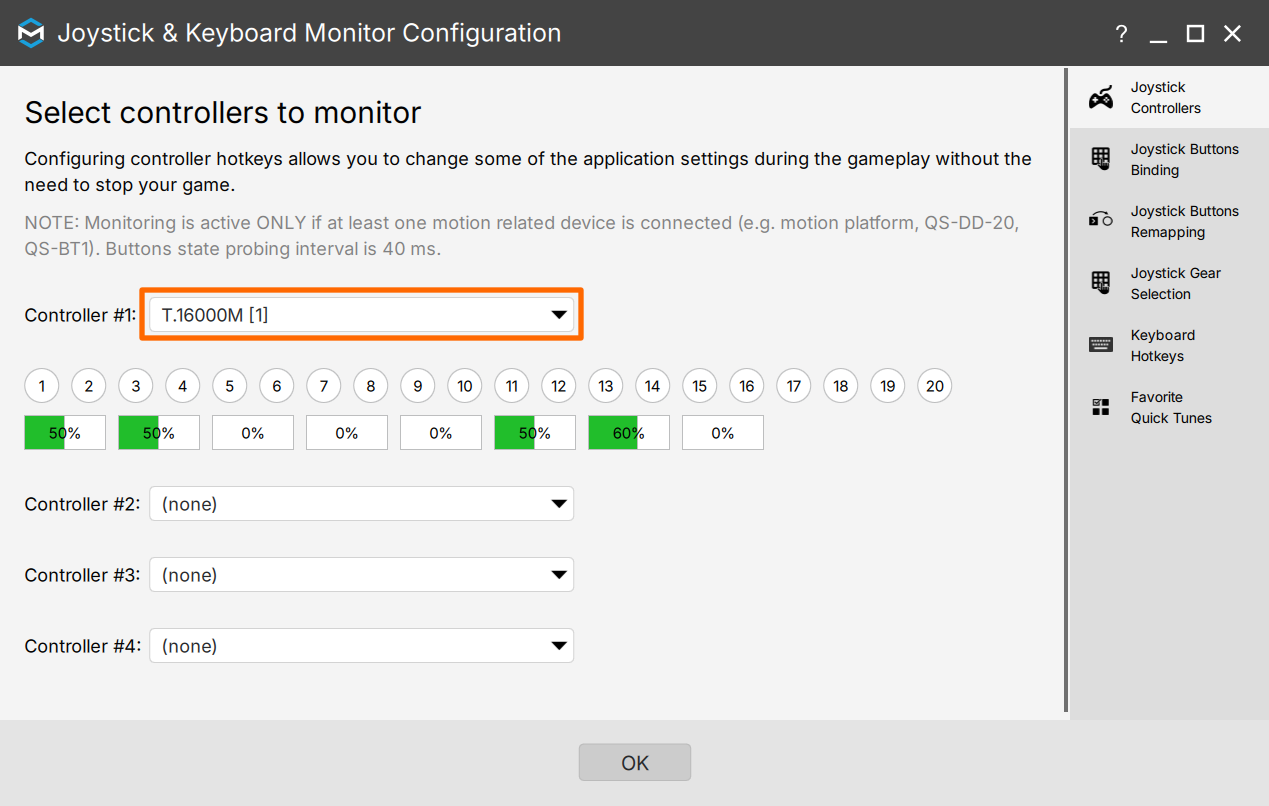
1. Go to Joystick Monitor Configuration and select your Button-Box controller.
2. Go to Joystick Buttons Binding and click the green plus next to a command to map the button (e.g. knob which is visible as two buttons - bind to increase and decrease).
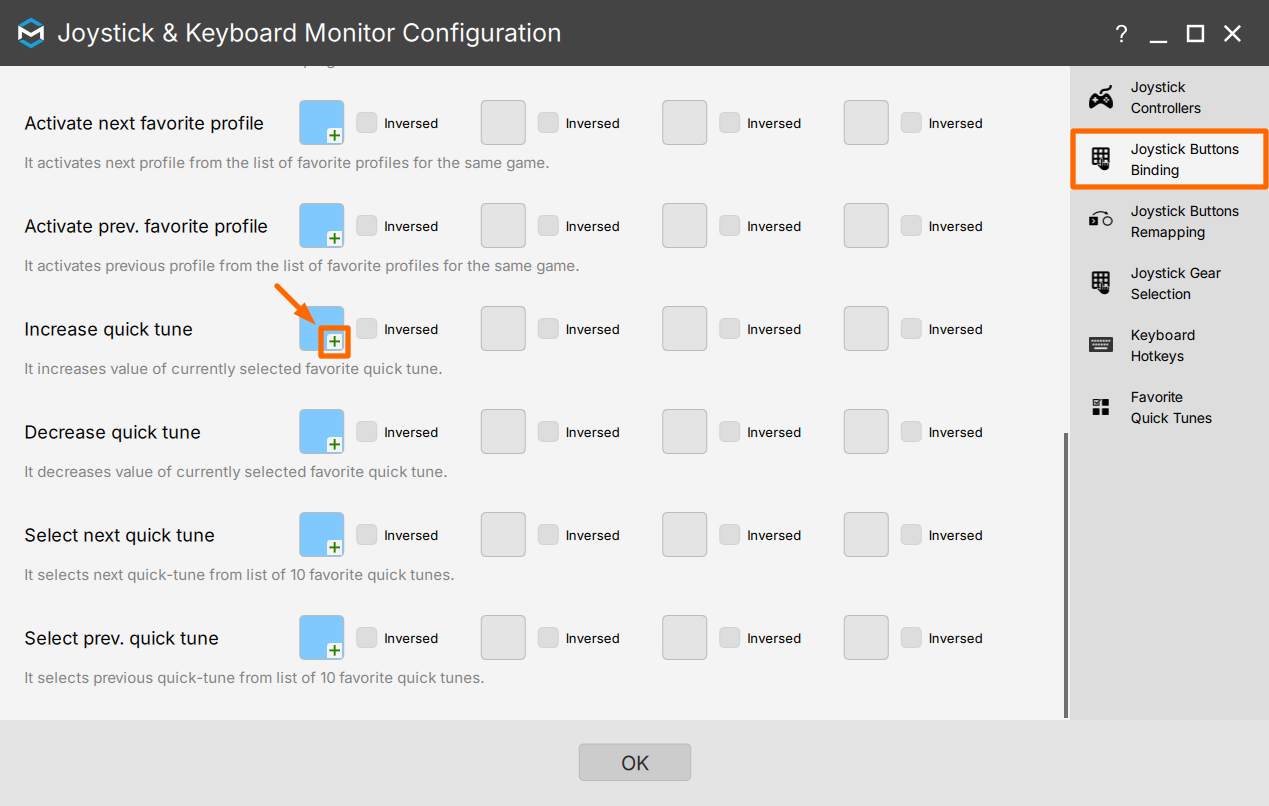
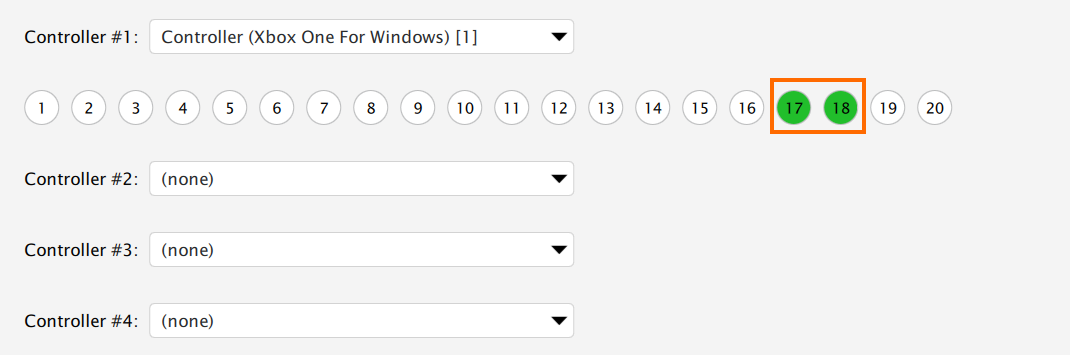
3. When the spinner is visible, the application is wating for button input.

4. For a start, map the buttons to Increase and decrease quick tunes, and Select next and previous quick tunes.
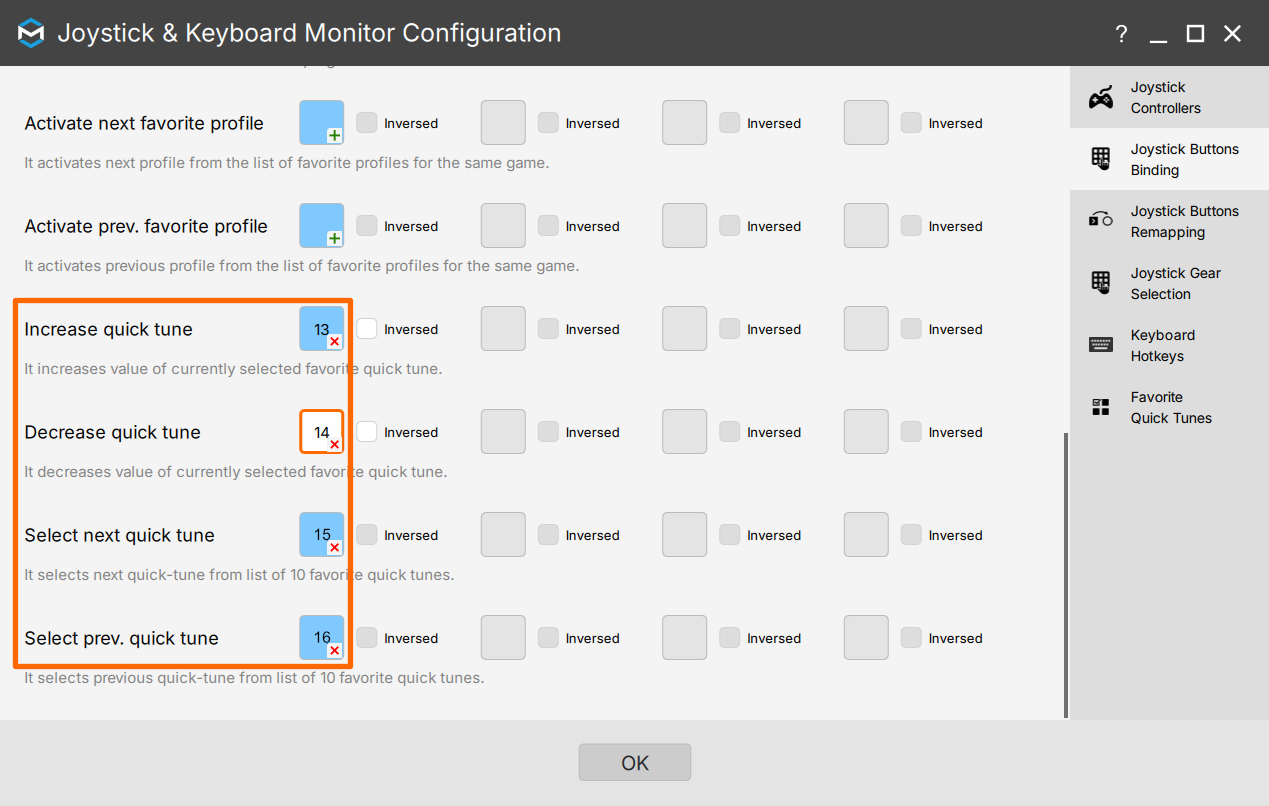
5. Now you need to specify which quick tunes specifically you are able to modify via button box. You need to provide their URLs and place them in Favorite Quick Tunes tab. The quick-tune URL is a path that contains quick-tune category (e.g. SFX), quick-tune name (e.g. Longitudinal G-Force Sustained) and value subindex (e.g. Sharpness is usually 1).
You do not have to write quick tune URL by hand, ForceSeatPM can generate it for you:
a) Go to a profile window (click on profile tile from main ForceSeatPM window) and navigate to a quick-tune of your choice.
b) Click on value label (if this is single value quick tune, then click on quick-tune name) to copy URL to clipboard.
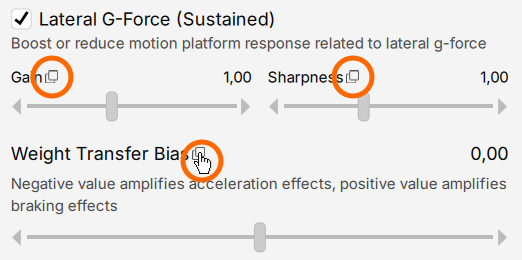
c) The clipboard will contains following URL:
M1/Lateral%20G-Force%20%28Intermittent%29/0
e) Go to Joystick Monitor Configuration and paste the content of the clipboard into one of the slots (ForceSeatPM will get rid of URL encoding syntax automatically). You can use empty slots or overwrite the existing ones, if you do not need them.
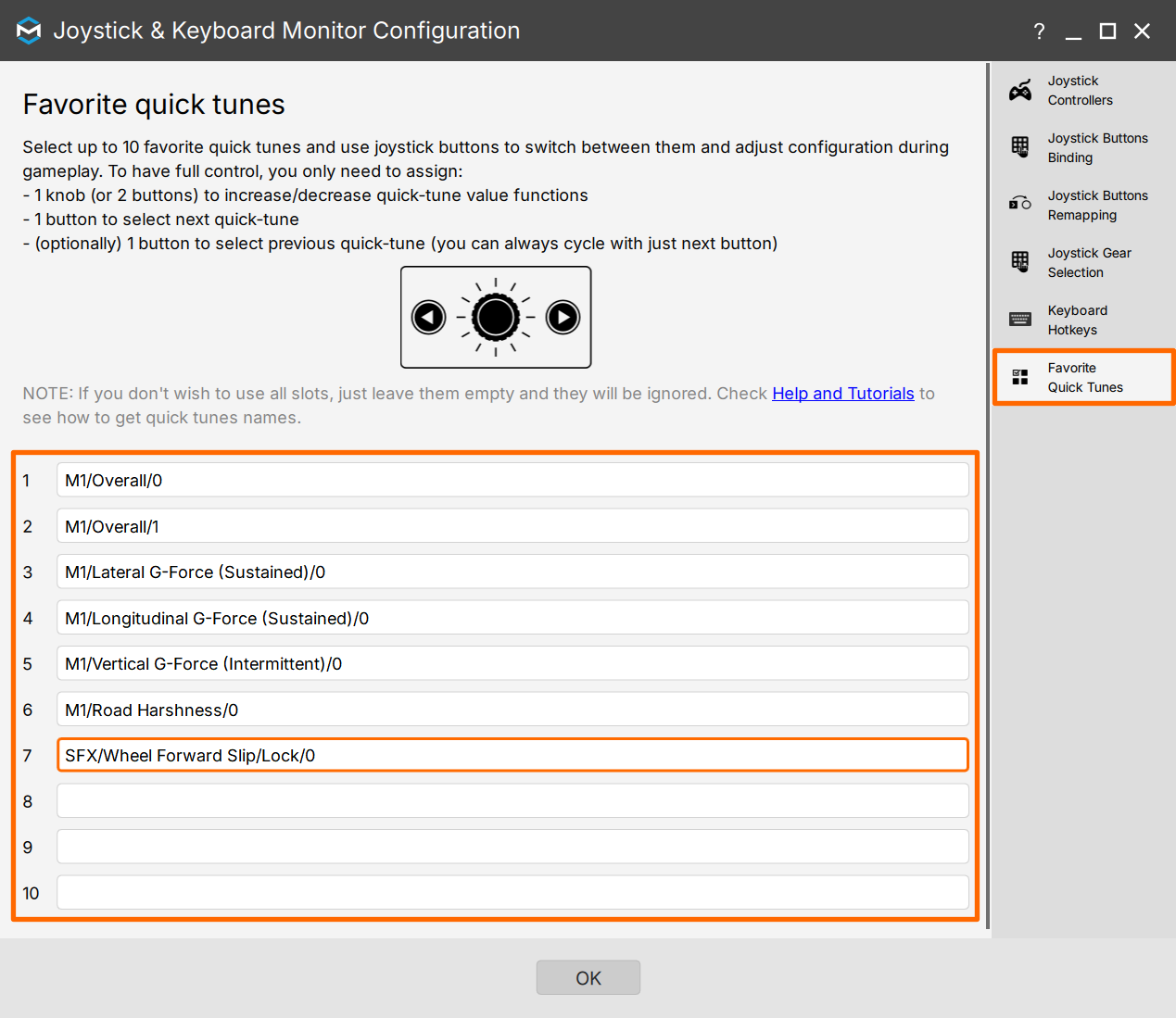
f) Repeat steps for other quick tunes or leave the remaining slots empty.
| URL | Description |
M1/Body%20Roll%20%28Sustained%29/0 | QubicSystem motion platform / Body roll sustained / Gain |
M1/Body%20Roll%20%28Sustained%29/1 | QubicSystem motion platform / Body roll sustained / Sharpness |
SFX/Gear%20Change%20Up%20Shift%20Intensity/0 | QubicSystem motion platform / Special effect / Gear change up shift intensity / Pitch |
PostProcessing/Roll/0 | QubicSystem motion platform / Post-processing / Roll / Linearity |
M2/Body%20Roll%20%28Sustained%29/0 | QS-H13 or NLR Motion Plus / Body roll sustained / Gain |
M2-SFX/Gear%20Change%20Up%20Shift%20Intensity/0 | QS-H13 or NLR Motion Plus / Special effect / Gear change up shift intensity / Pitch |
M2-PostProcessing/Roll/0 | QS-H13 or NLR Motion Plus / Post-processing / Roll / Linearity |
SBT-Base/Braking/0 | QS-BT1 belt tensioner / Braking / Gain |
SBT-SFX/Gear%20Change%20Effect/0 | QS-BT1 belt tensioner / Special effect / Gear change / Gain |
WheelBase/Max%20Torque%20Limit/0 | QS-DD-20 wheel base / Max Torque limit (single slider) |
WheelBase-SFX/Rev%20Limiter/0 | QS-DD-20 wheel base / Special effect / Rev limiter / Frequency |
Vehicle/Wheel%20Forward%20Slip%2FLock%20Threshold/0 | Vehicle parameters / Wheel forward slip lock threshold / Front Wheels |
%20 into space, %28 into ( and %29 into ). Example:
M1/Body%20Roll%20%28Sustained%29/0 → M1/Body Roll (Sustained)/0
3 Visual feedback
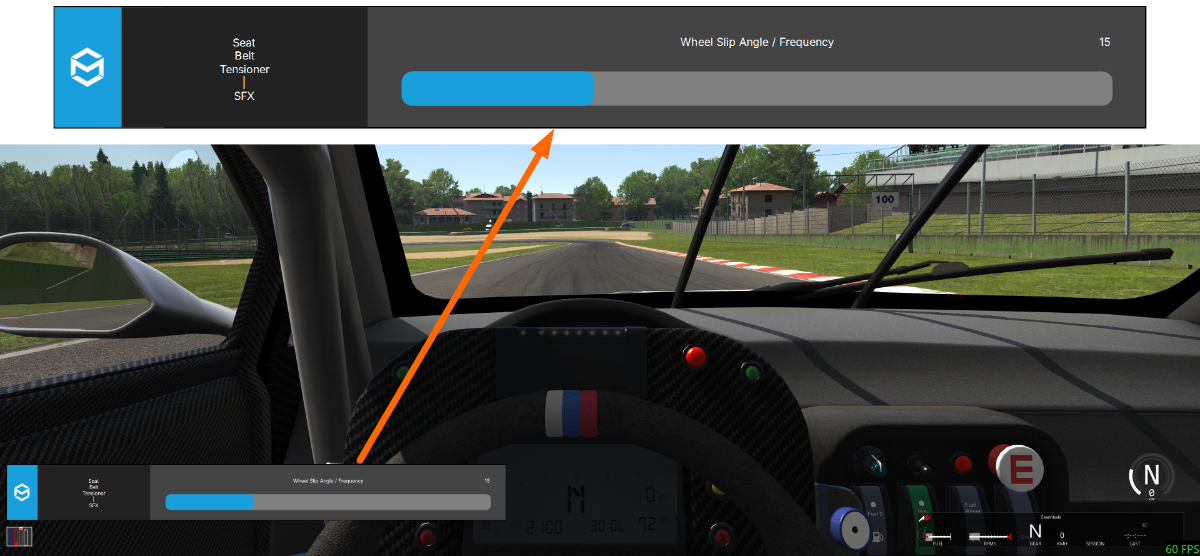
Whenever a quick-tune or the active profile is changed with the joystick hotkey, there is a simple overlay (OSD) displayed on the top of the running game. The OSD shows a device name, a modified quick-tune and its current value.