
ForceSeatPM Control Protocol
Control the platform manager from third-party apps using the mosy:// URL protocol.
1 Introduction
During the installation, ForceSeatPM registers itself as a mosy:// protocol handler - commands for the platform manager application can be sent from any place in Windows operating system and from 3rd party applications.
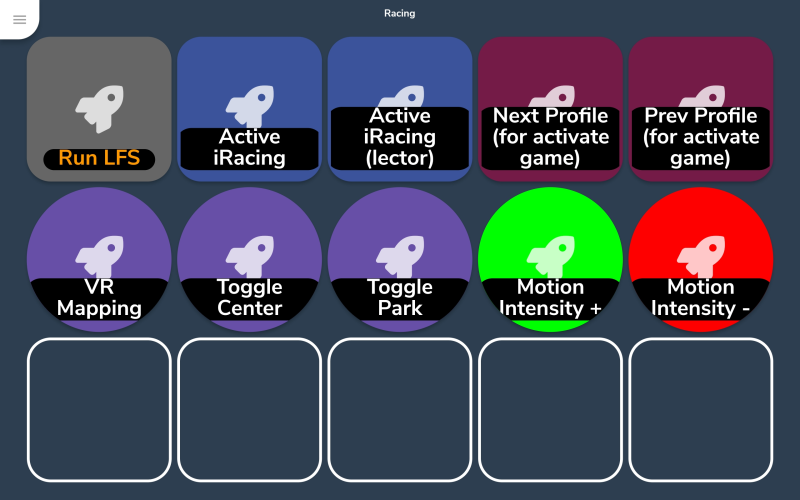
For instance, if you want to park the motion platform, just use a following command in the Run prompt:
mosy://toggle-park
2 List of supported commands
- mosy://run/PROFILE_NAME/CONFIGURATION_INDEX
- mosy://activate/PROFILE_NAME
- mosy://activate-feedback/PROFILE_NAME
- mosy://toggle-park
- mosy://switch-park-on
- mosy://switch-park-off
- mosy://toggle-pause
- mosy://switch-pause-on
- mosy://switch-pause-off
- mosy://toggle-center
- mosy://switch-center-on
- mosy://switch-center-off
- mosy://vr-begin-map
- mosy://activate-next-profile
- mosy://activate-prev-profile
- mosy://quick-tune-increase/QUICK_TUNE_URL
- mosy://quick-tune-decrease/QUICK_TUNE_URL
ForceSeatPM install path -- "mosy://activate/Project CARS 2"3 Deckboard (Riva Farabi)
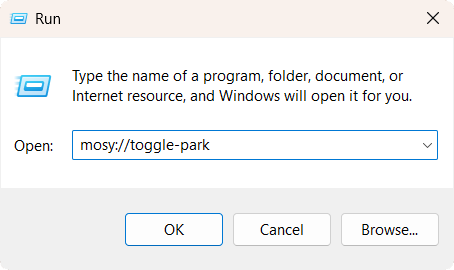
Deckboard is an application that helps you create macros for Windows and launch them on your phone. It is really simple to configure and it is a good example to demonstrate integration with ForceSeatPM. To learn more about application, visit its homepage https://deckboard.app.
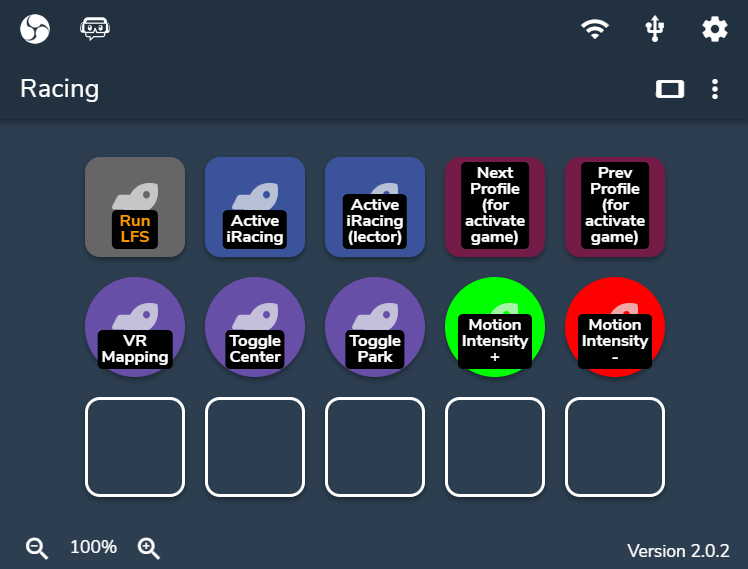
4 A button to activate Assetto Corsa Competizione profile
1. Go to Deckboard and click + to add a new button.
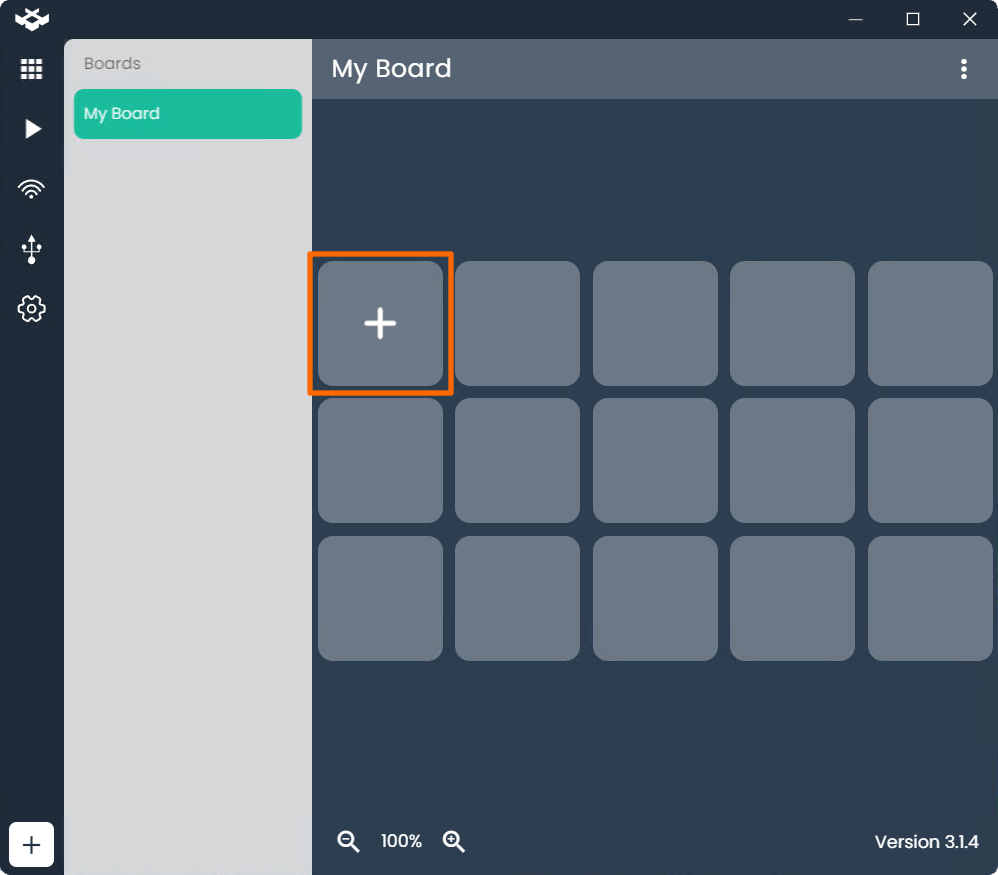
2. Enter a label. In Action menu, choose Run Program option. In Executable file menu
select platform manager as Executable File:
ForceSeatPM install path
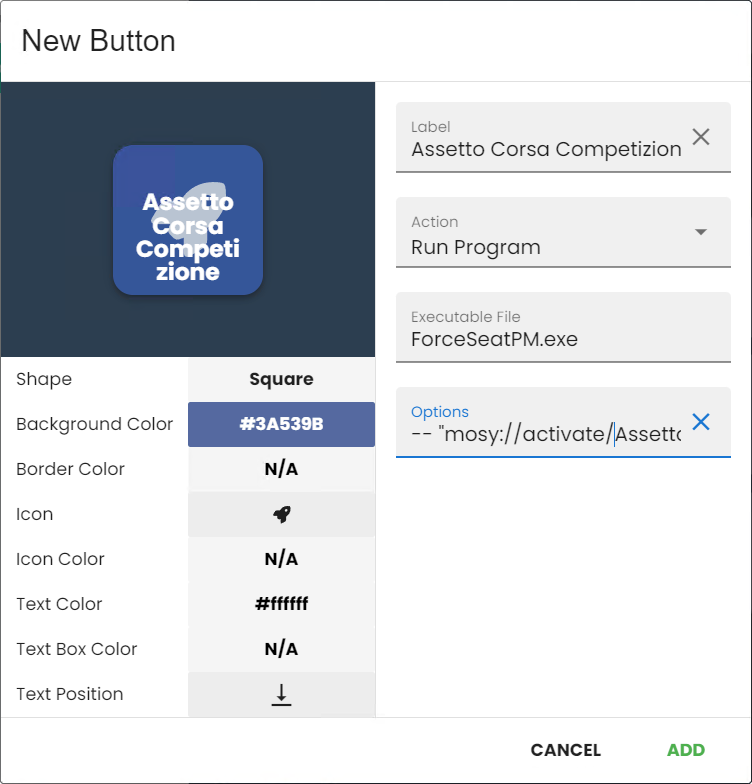
3. In Options you need to enter a correct URL in the following format:
-- "mosy://activate/PROFILE_NAME"
for example: -- "mosy://activate/Assetto Corsa Competizione"
4. You can create and enter an URL manually or alternatively ForceSeatPM can create it for you. In order to get the URL that activates the game profile, click on game profile in ForceSeatPM and then click Run the game button.
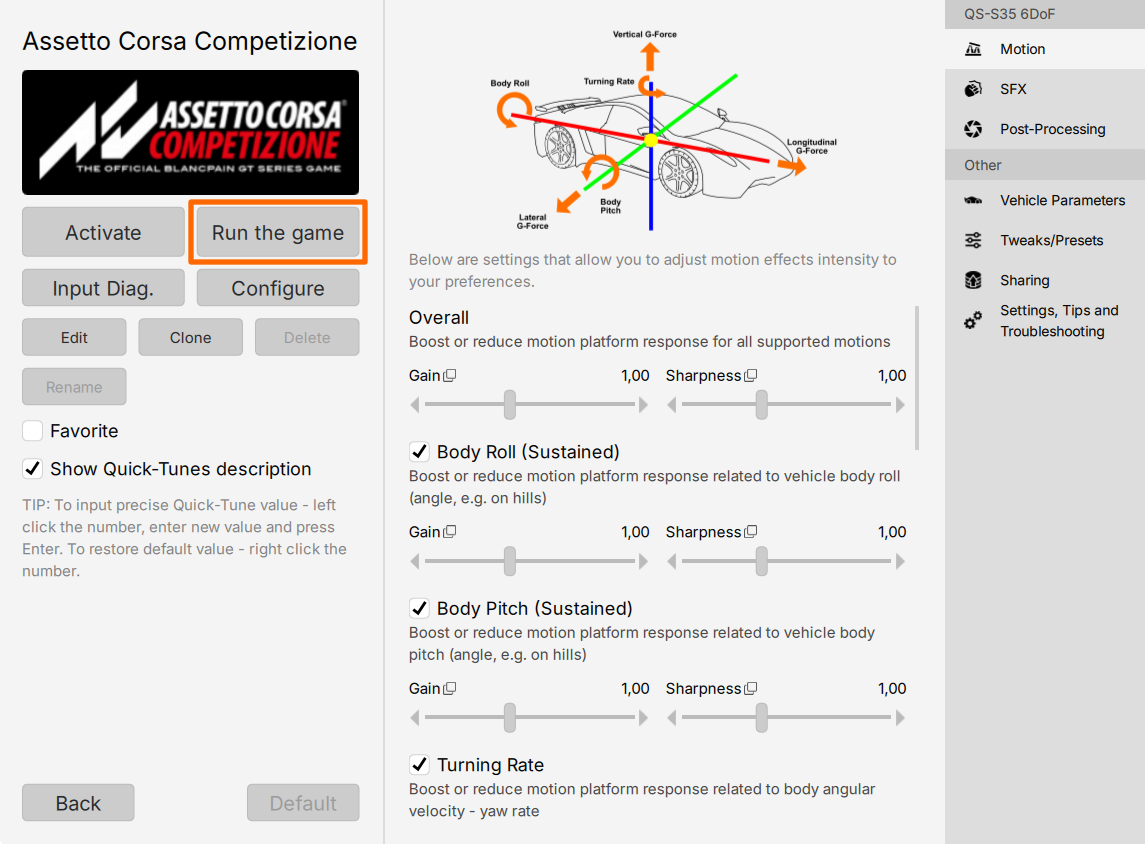
5. Next click Copy URL icon to copy the address to clipboard.
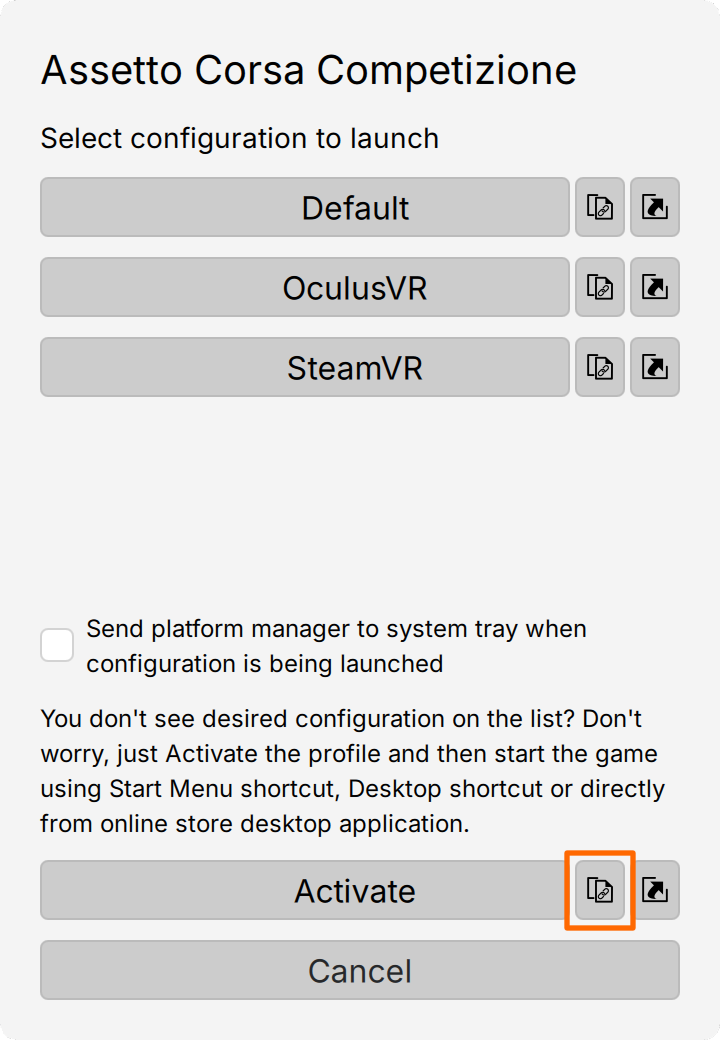
6. The clipboard will contain the following text:
mosy://activate/Assetto%20Corsa%20Competizione
7. Go back to the Deckboard and paste the URL from the clipboard. Then add surrounding quotes and the -- prefix.
-- "mosy://activate/Assetto%20Corsa%20Competizione"
8. If you wish to have voice feedback informing you about profile change, then replace activate with activate-feedback:
-- "mosy://activate-feedback/Assetto%20Corsa%20Competizione"
mosy://activate/Assetto Corsa Competizione

mosy://activate/Assetto%20Corsa%20Competizione
5 A button to start Assetto Corsa Competizione game
1. Go to Deckboard and click + to add a new button.
2. Choose Run Program as Action and select platform manager as Executable File:
ForceSeatPM install path
3. In Options you need to enter correct URL in the following format:
-- "mosy://run/PROFILE_NAME/CONFIGURATION_INDEX"
for example: -- "mosy://run/Assetto Corsa Competizione/2"
4. You can create and enter an URL manually or alternatively ForceSeatPM can create it for you. In order to get URL that starts the game, in ForceSeatPM click on game profile and then click Run the game button.
5. Next click Copy URL icon to copy the address to clipboard.
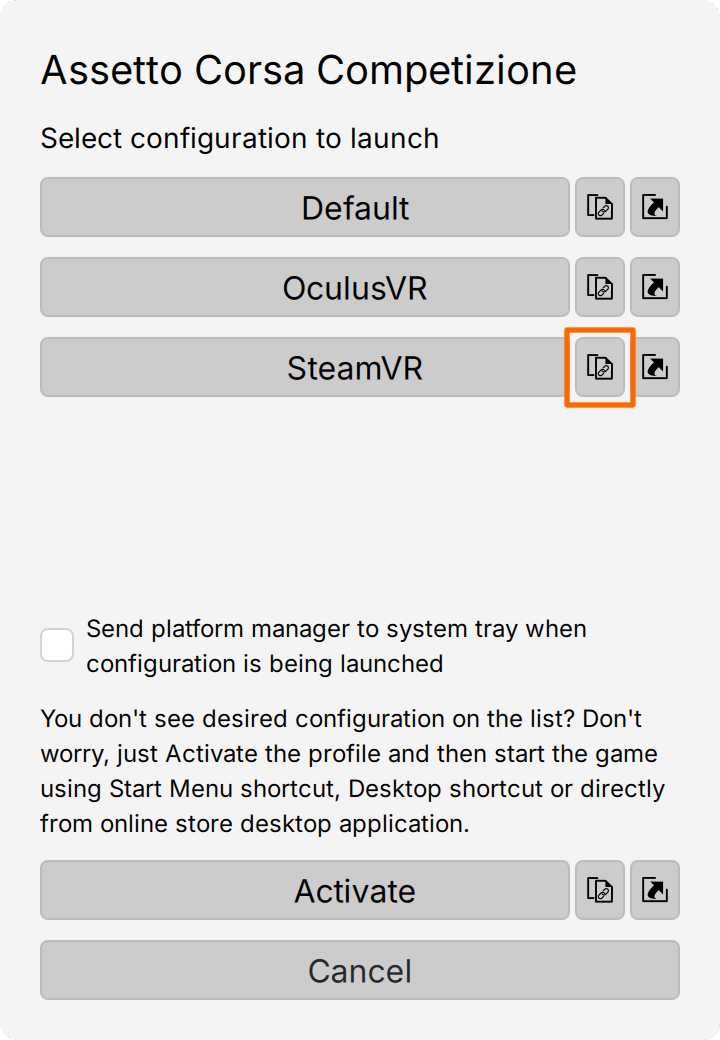
6. The clipboard will contain the following text:
mosy://run/Assetto%20Corsa%20Competizione/2
7. Go back to the Deckboard and paste the URL from the clipboard. Then add surrounding quotes and the -- prefix.
-- "mosy://run/Assetto%20Corsa%20Competizione/2"
mosy://run/Assetto Corsa Competizione/2

mosy://run/Assetto%20Corsa%20Competizione/2
6 A button to activate next (or previous) favorite profile for active game
This button will activate next profile from the list of favorite profiles for the same game.
1. Go to Deckboard and click + to add a new button.
2. Choose Run Program as Action and select platform manager as Executable File:
ForceSeatPM install path
3. In Options enter one of the following parameters:
-- "mosy://activate-next-profile"
-- "mosy://activate-prev-profile"
7 A button to lock (and unlock) the motion platform in parked position
1. Go to Deckboard and click + to add a new button.
2. Choose Run Program as Action and select platform manager as Executable File:
ForceSeatPM install path
3. In Options enter following parameters:
-- "mosy://toggle-park"
4. Alternatively use switch-park-on if you wish to have separate buttons for engaging and releasing parking state:
-- "mosy://switch-park-on"
-- "mosy://switch-park-off"
8 A button to lock (and unlock) the motion platform in paused state
1. Go to Deckboard and click + to add a new button.
2. Choose Run Program as Action and select platform manager as Executable File:
ForceSeatPM install path
3. In Options enter following parameters:
-- "mosy://toggle-pause"
4. Alternatively use switch-pause-on if you wish to have separate buttons for engaging and releasing pause state:
-- "mosy://switch-pause-on"
-- "mosy://switch-pause-off"
9 A button to lock (and unlock) the motion platform in center position
1. Go to Deckboard and click + to add a new button.
2. Choose Run Program as Action and select platform manager as Executable File:
ForceSeatPM install path
3. In Options enter following parameters:
-- "mosy://toggle-center"
4. Alternatively use switch-center-on if you wish to have separate buttons for engaging and releasing center-position state:
-- "mosy://switch-center-on"
-- "mosy://switch-center-off"
10 A button to start VR coordinate system mapping procedure
1. Go to Deckboard and click + to add a new button.
2. Choose Run Program as Action and select platform manager as Executable File:
ForceSeatPM install path
3. In Options enter following parameters:
-- "mosy://vr-begin-map"
11 Touch-Portal (Rils)
Touch-Portal allows you to control your desktop software and PC using your mobile device. Another example that demonstrates integration with ForceSeatPM. To learn more about the application, visit Touch Portal homepage at https://www.touch-portal.com.
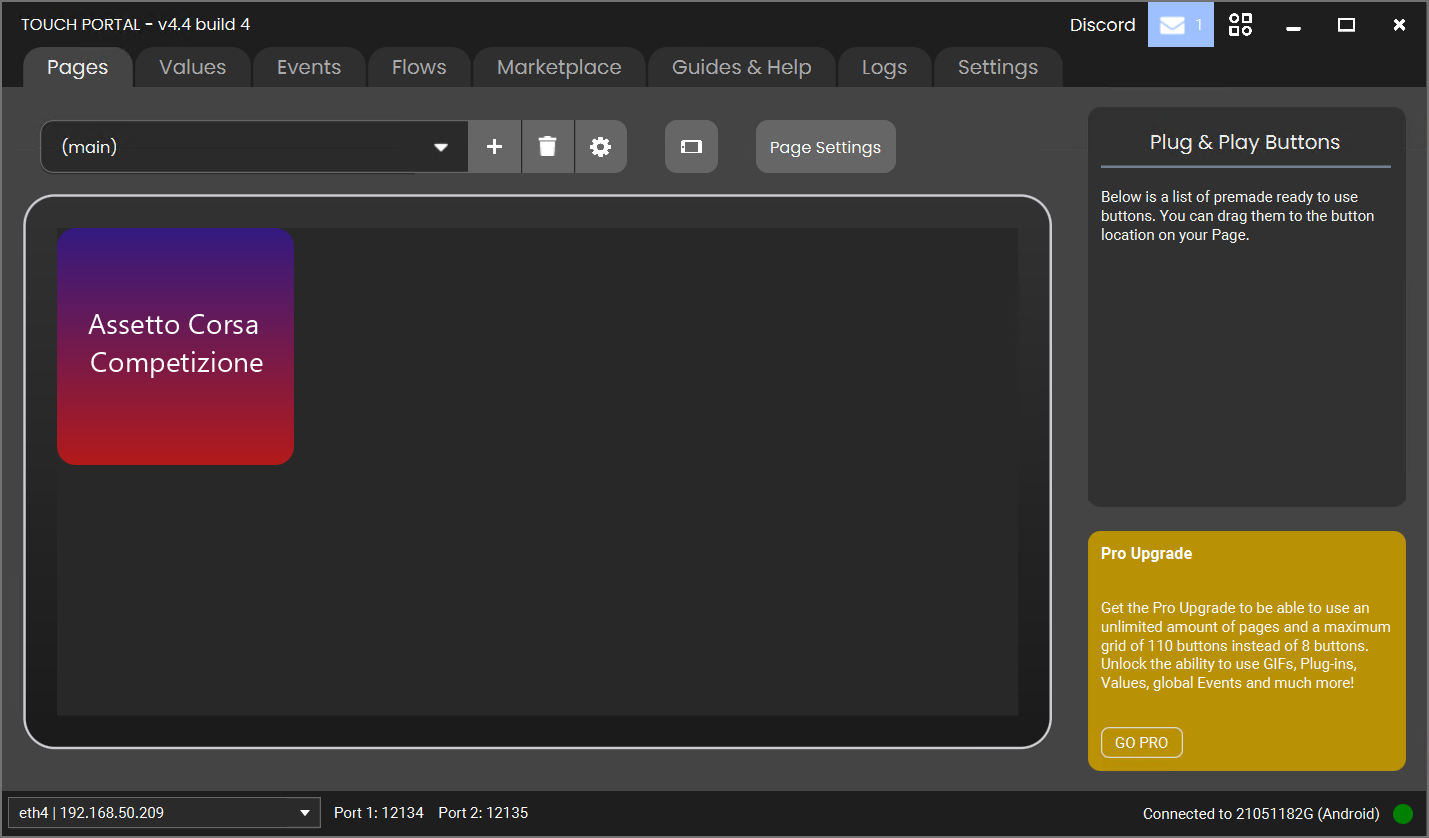
12 A button to activate Assetto Corsa Competizione profile
1. Go to Touch Portal and click an empty cell to add new a button.
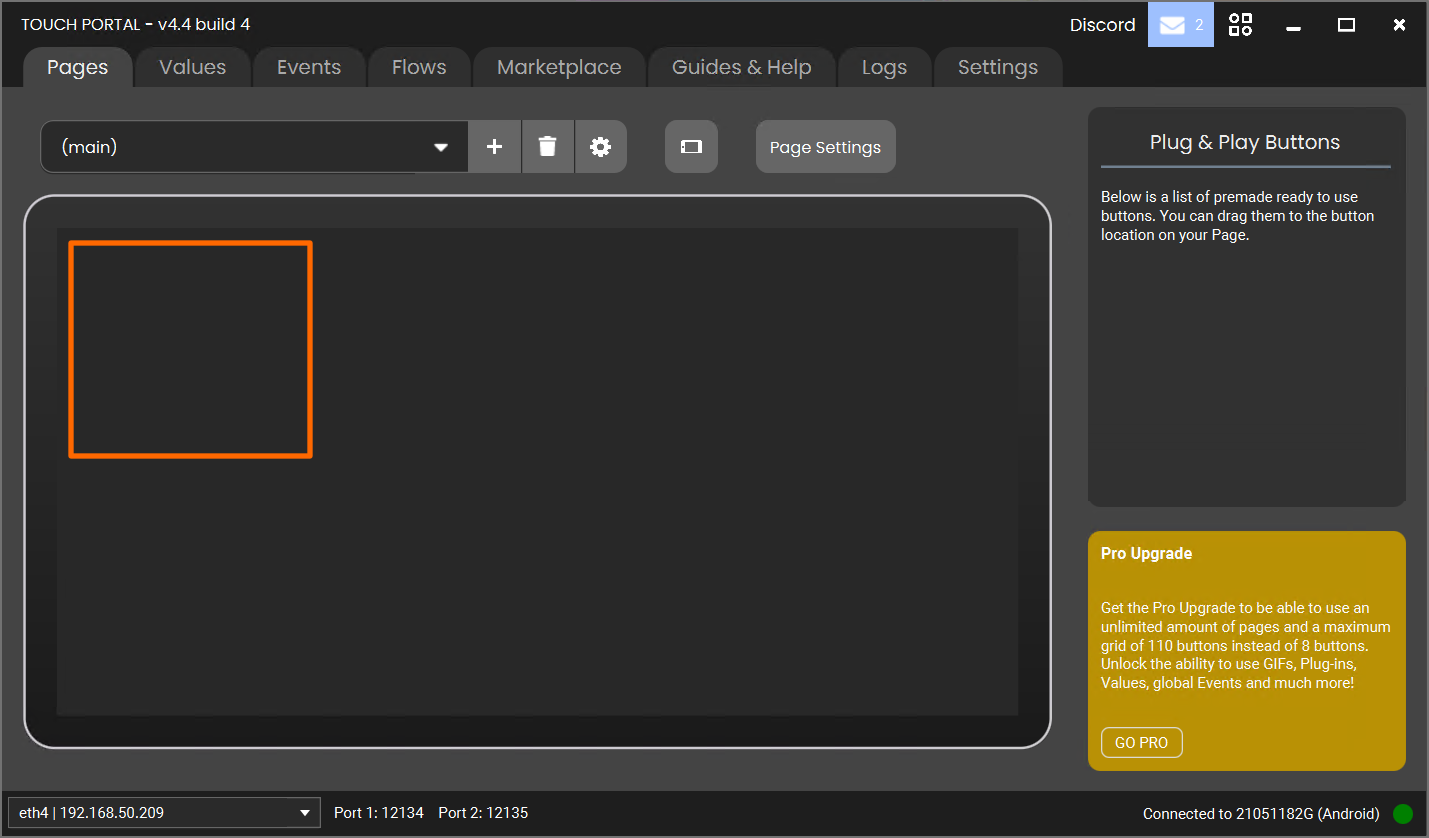
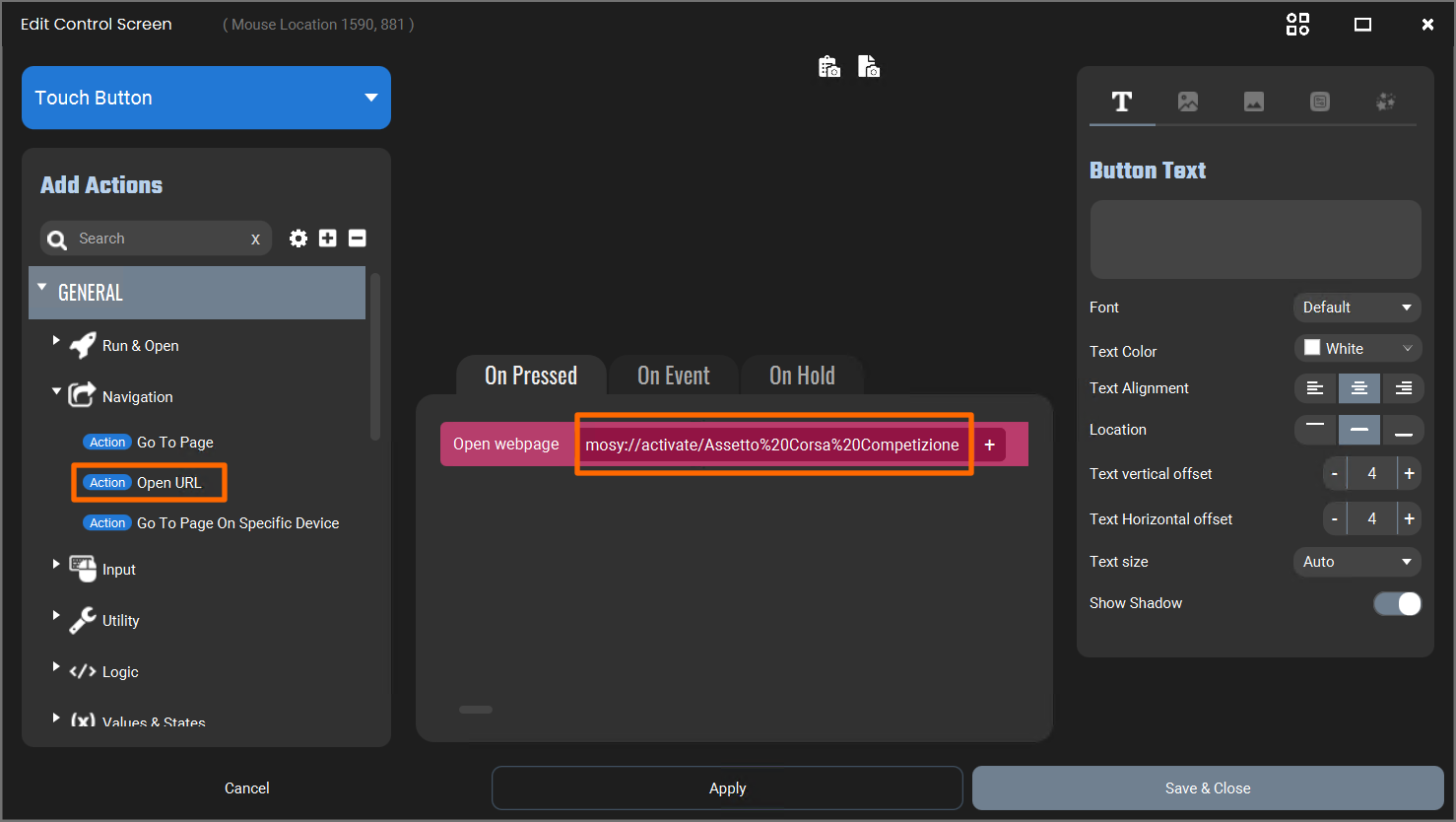
2. Choose Navigation → Open URL from Add Actions tab. In an Open webpage enter a correct URL in the following format:
mosy://activate/PROFILE_NAME
for example: mosy://activate/Assetto%20Corsa%20Competizione
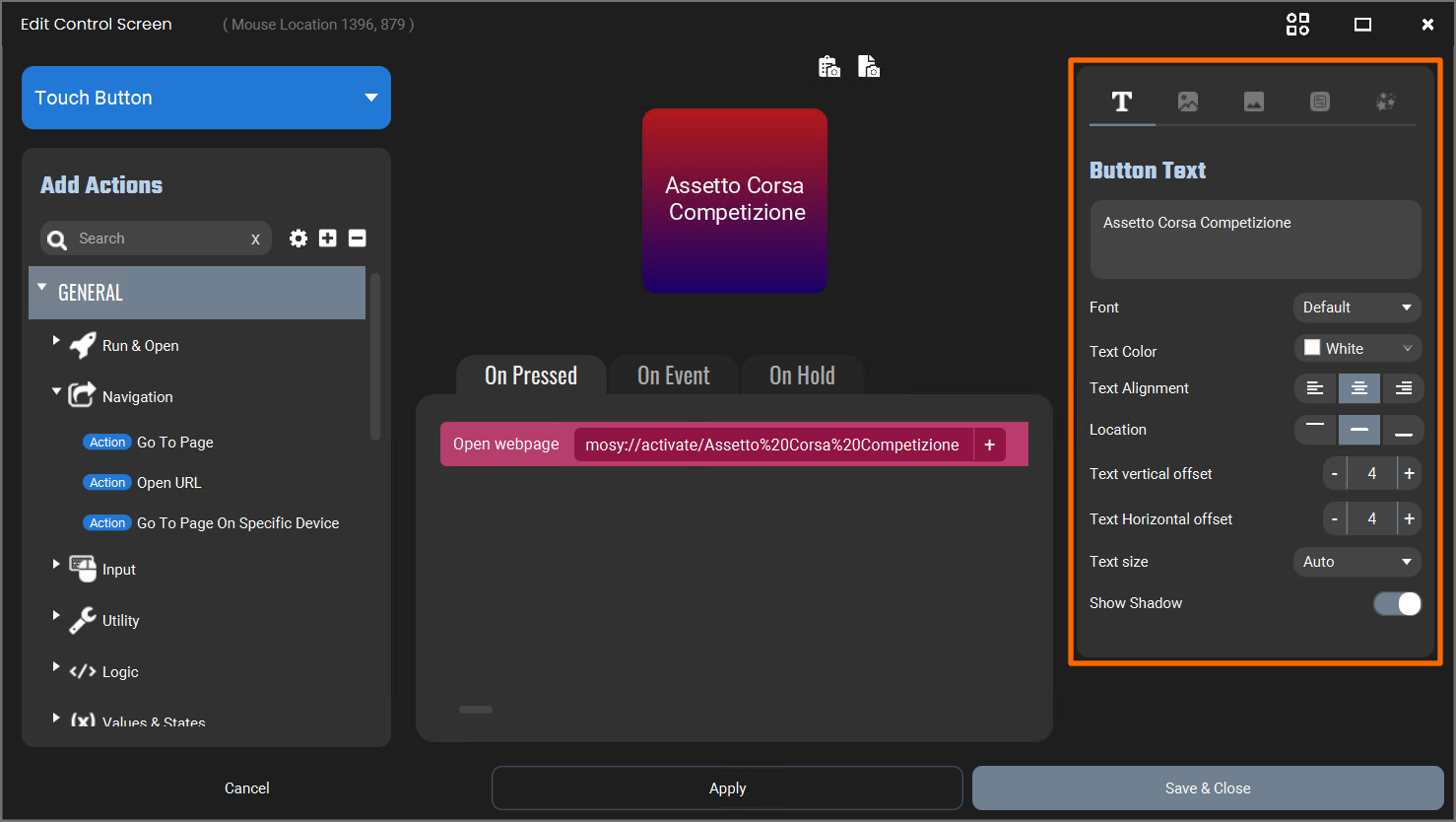
3. Define the appearance of the button in the panel on the right.
4. You can create and enter the URL manually or alternatively ForceSeatPM can create it for you. In order to get the URL that activates a game profile, click the game profile in ForceSeatPM and then click Run the game button.
5. Next click Copy URL icon to copy the address to clipboard.
6. The clipboard will contain the following text:
mosy://activate/Assetto%20Corsa%20Competizione
7. Go back to Touch Portal and paste the URL from the clipboard:
mosy://activate/Assetto%20Corsa%20Competizione
mosy://activate/Assetto Corsa Competizione

mosy://activate/Assetto%20Corsa%20Competizione
13 A button to start Assetto Corsa Competizione game
1. Go to Touch Portal and click an empty cell to add new a button.
2. Choose Navigation → Open URL from Add Actions tab and
then in Open webpage enter correct URL in the following format:
mosy://run/PROFILE_NAME/CONFIGURATION_INDEX
for example: mosy://run/Assetto%20Corsa%20Competizione/2
3. You can create and enter an URL manually or alternatively ForceSeatPM can create it for you. In order to get URL that starts the game, in ForceSeatPM click on game profile and then click Run the game button.
4. Next click Copy URL icon to copy the address to clipboard.
5. The clipboard will contain the following text:
mosy://run/Assetto%20Corsa%20Competizione/2
6. Go back to Touch Portal and paste the URL from the clipboard:
mosy://run/Assetto%20Corsa%20Competizione/2
mosy://activate/Assetto Corsa Competizione

mosy://activate/Assetto%20Corsa%20Competizione
14 A button to activate next (or previous) favorite profile for active game
This button will activate the next profile from the list of favorite profiles for the same game.
1. Go to Touch Portal and click an empty cell to add new a button.
2. Choose Navigation → Open URL from Add Actions tab and
then in Open webpage enter one of the following URLs:
mosy://activate-next-profile
mosy://activate-prev-profile
15 A button to lock (and unlock) the motion platform in parked position
1. Go to Touch Portal and click an empty cell to add a new button.
2. Choose Navigation → Open URL from Add Actions tab and
then in Open webpage enter the following URL:
mosy://toggle-park
3. Alternatively use switch-park-on if you wish to have separate buttons for engaging and releasing parking state:
mosy://switch-park-on
mosy://switch-park-off
16 A button to lock (and unlock) the motion platform in paused state
1. Go to Touch Portal and click an empty cell to add new a button.
2. Choose Navigation → Open URL from Add Actions tab and
then in Open webpage enter the following URL:
mosy://toggle-pause
3. Alternatively use switch-pause-on if you wish to have separate buttons for engaging and releasing pause state:
mosy://switch-pause-on
mosy://switch-pause-off
17 A button to lock (and unlock) the motion platform in center position
1. Go to Touch Portal and click an empty cell to add new a button.
2. Choose Navigation → Open URL from Add Actions tab and
then in Open webpage enter the following URL:
mosy://toggle-center
3. Alternatively use switch-center-on if you wish to have separate buttons for engaging and releasing center-position state:
mosy://switch-center-on
mosy://switch-center-off
18 A button to start VR coordinate system mapping procedure
1. Go to Touch Portal and click an empty cell to add new a button.
2. Choose Navigation → Open URL from Add Actions tab and
then in Open webpage enter the following URL:
mosy://vr-begin-map
19 Quick-Tune URL
quick-tune-increase and quick-tune-decrease can be used to increase or decrease any Quick-Tune slider. In order to use it, you need to specify a Quick-Tune category (e.g. SFX - special effects), Quick-Tune name (e.g. Longitudinal G-Force Sustained) and value subindex (e.g. Sharpness which is usually at 1). There is no binding to a specific profile, so as long as the activate profile contains a specified Quick-Tune (search is performed by the name), then its value will be increased/decreased.
You do not have to write a Quick-Tune URL manually, ForceSeatPM can generate it for you.
1. Click on the profile to open details and navigate to Quick-Tune of your choice.
2. Click on the copy symbol (next to Quick Tune or subindex name) to copy the URL to clipboard.
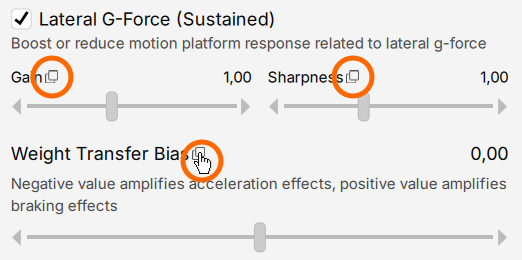
3. This clipboard will contain following URL:
M1/Lateral%20G-Force%20%28Sustained%29/1
To use it, just append quick-tune-increase command:
mosy://quick-tune-increase/M1/Lateral%20G-Force%20%28Sustained%29/1
mosy://quick-tune-decrease/M1/Lateral%20G-Force%20%28Sustained%29/1
4. To verify if the URL works correctly, keep the profile details visible on screen, then click Windows Start button, followed by Run and execute one of the above commands:
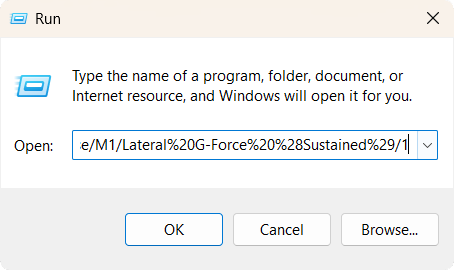
5. If it works correctly, you will see that Quick-Tune's value change in ForceSeatPM.
