
Motion Scripts in VS Code
Edit motion scripts in Visual Studio Code with IntelliSense and syntax highlighting.
1 Introduction
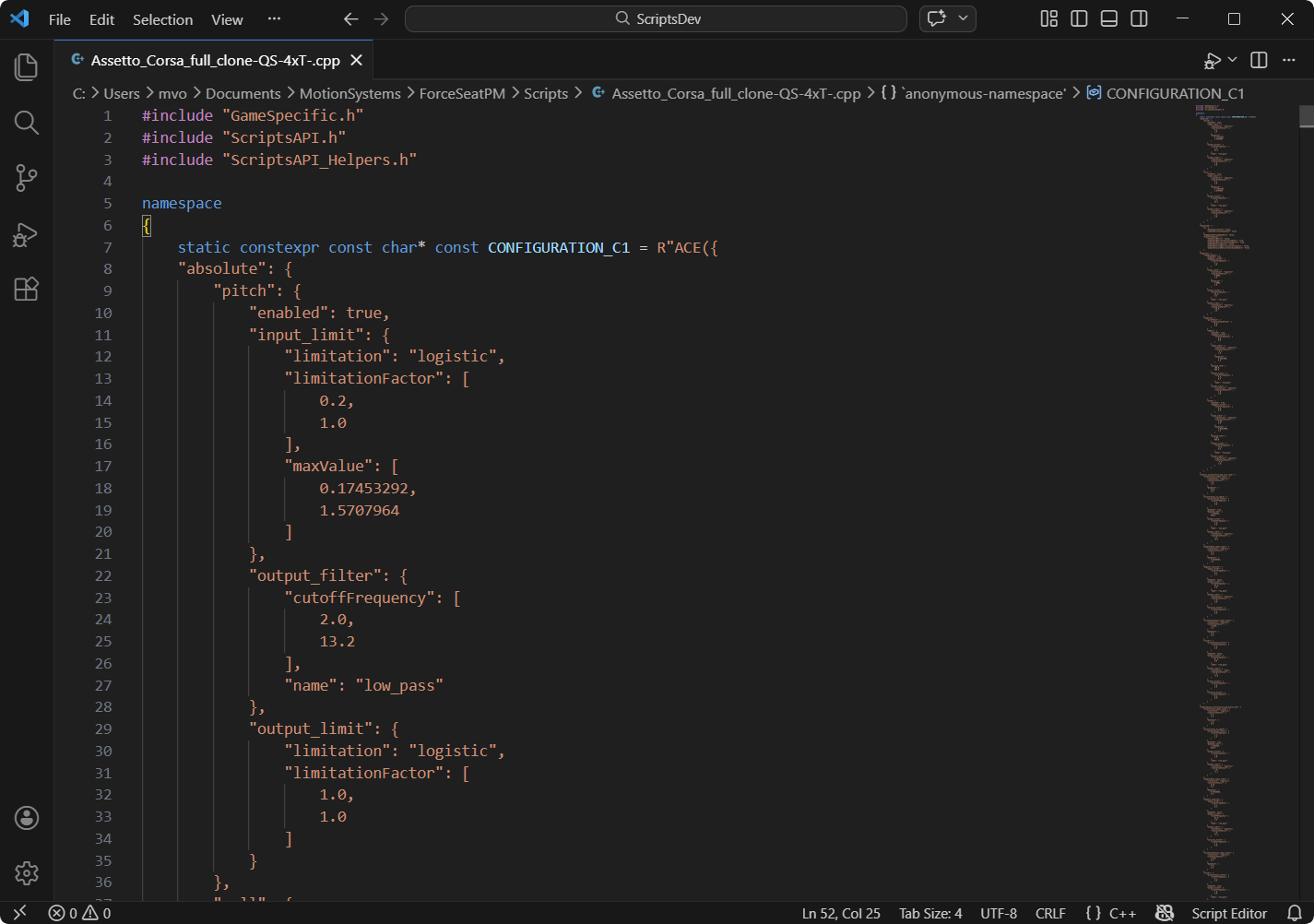
This tutorial shows how to use Visual Studio Code to edit motion scripts associated with profiles in platform manager. Using Visual Studio Code enables code completion (IntelliSense), syntax highlighting and contextual help. It allows also to browse API classes and functions directly from the editor.
2 Prerequisites
1. Make sure that Visual Studio Code is installed.
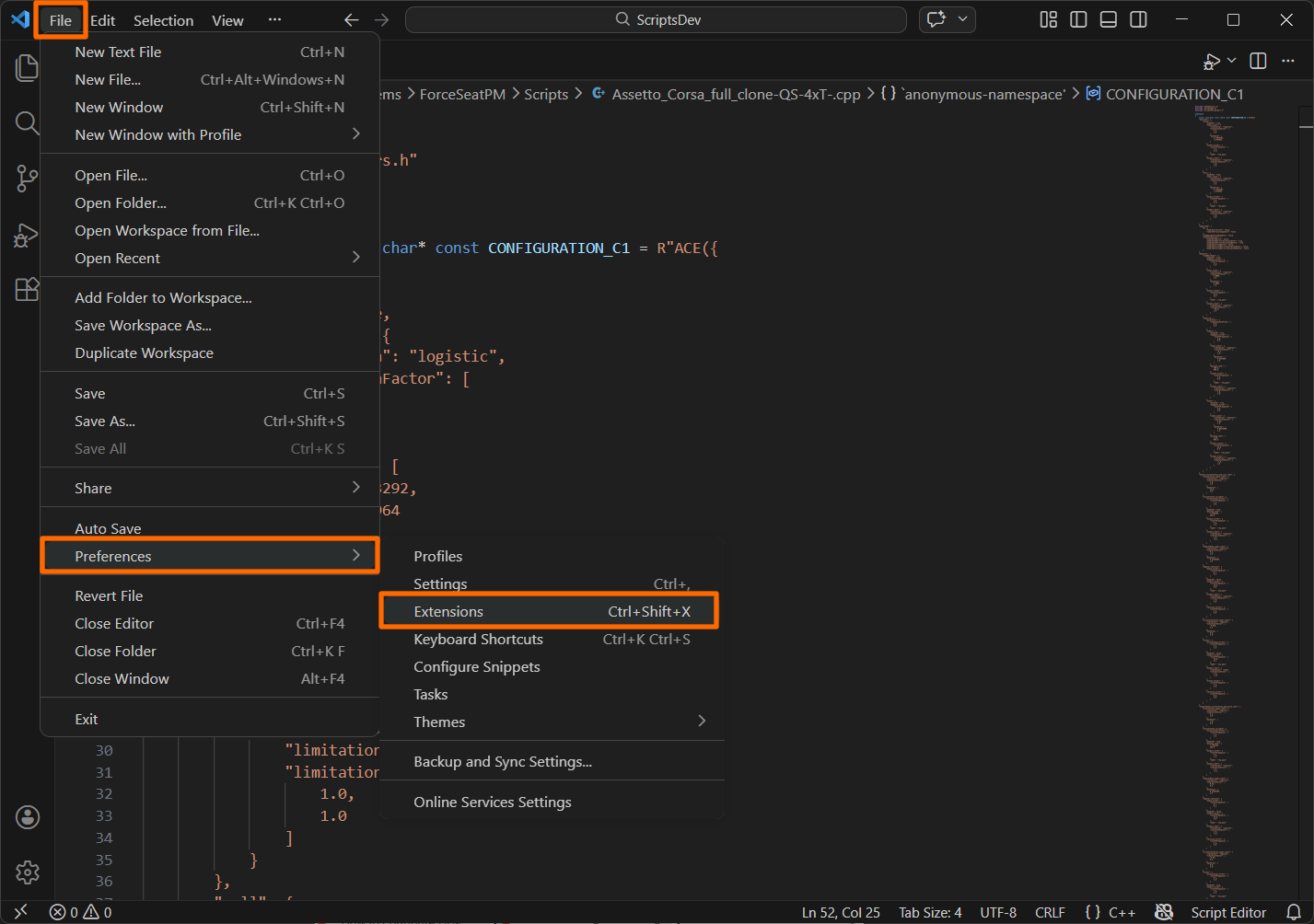
2. Start the Visual Studio Code, go to File, Preferences, Extensions.
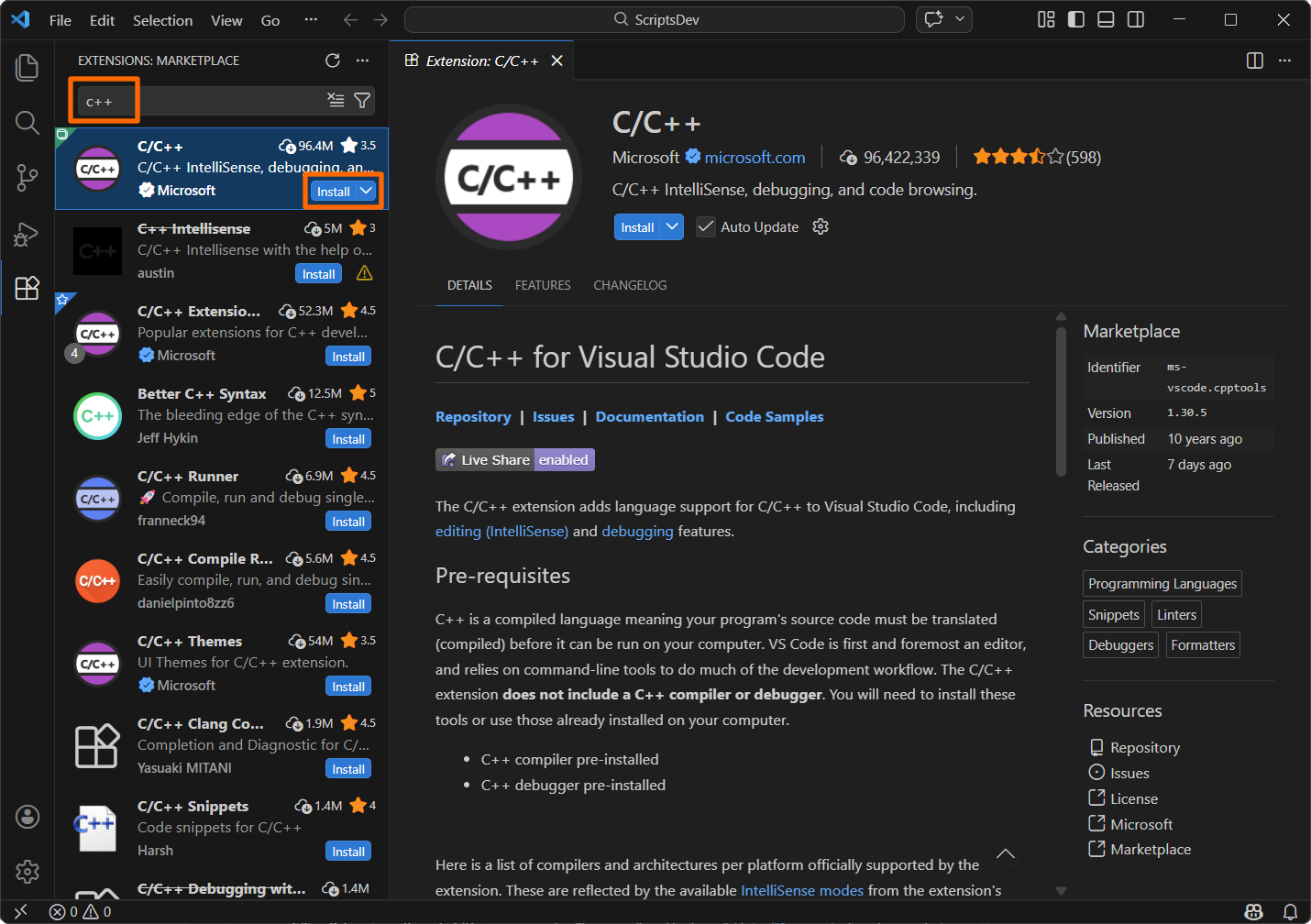
3. Search for C/C++ extension. Click install and wait until the extension and all dependencies are installed.
4. Close the program.
3 Steps to open the script
Keep in mind that ONLY a cloned (not a built-in profile) and a full copy (non-shallow) profile's script can be edited.
Creating a full copy of a profile means, that it will not be updated in the future with software updates. In order to, for example, implement support for new devices, user will have to update his profiles by creating a full copy of new built-in profile and transfer his changes manually.
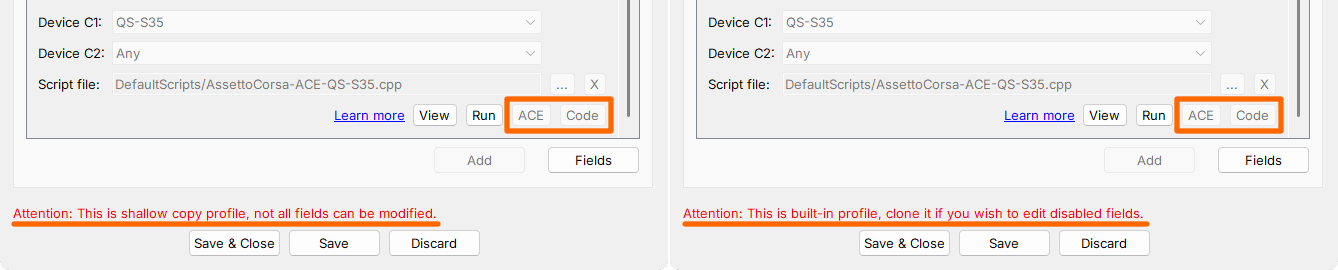
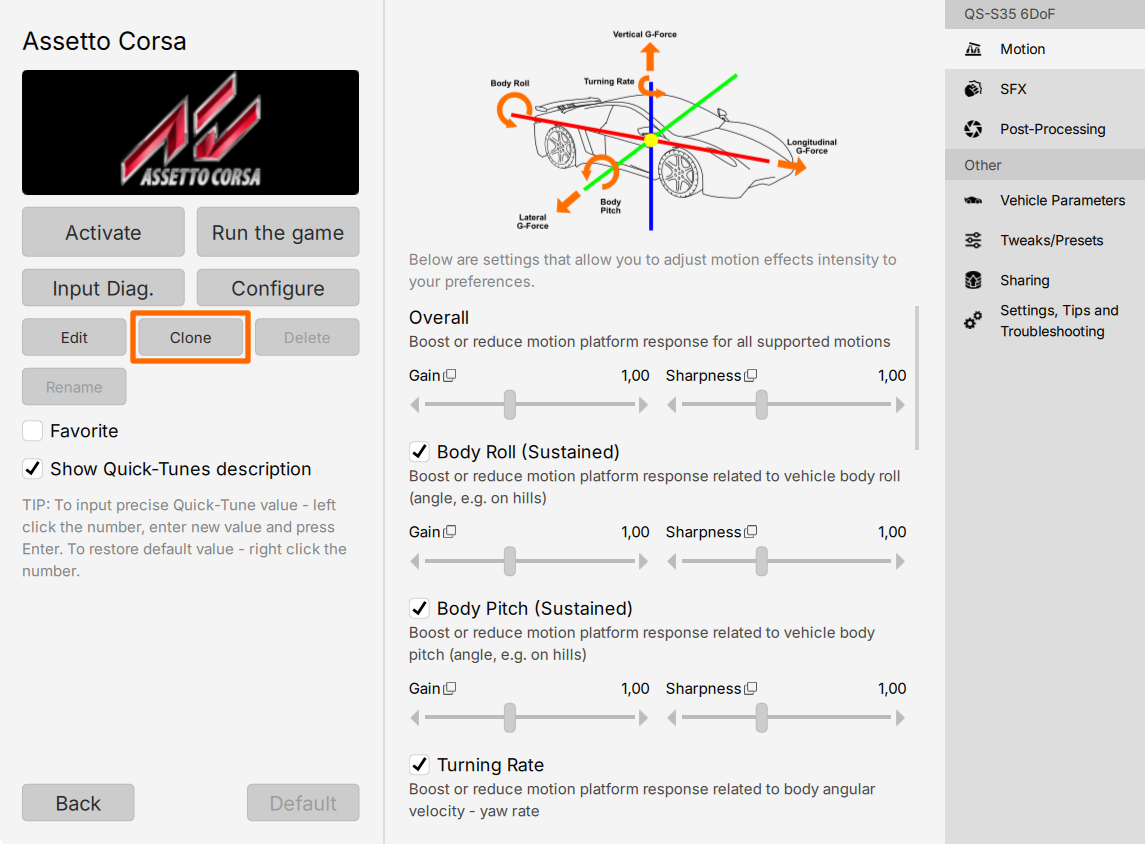
1. Go to ForceSeatPM and open the profile that you want to modify. Click Clone.
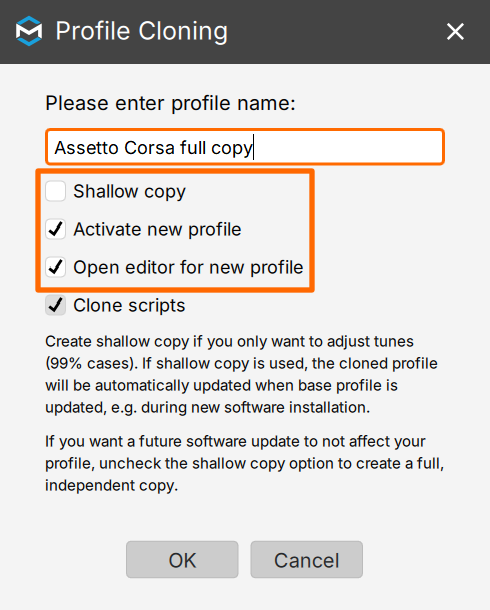
2. In the cloning window:
- Type in a new profile name
- disable Shallow copy
- enable Activate new profile
- enable Open editor for new profile
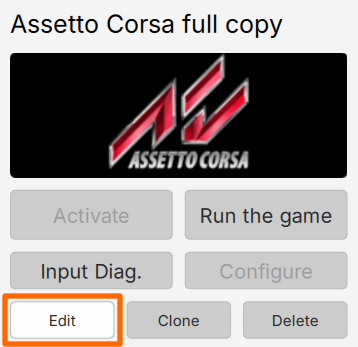
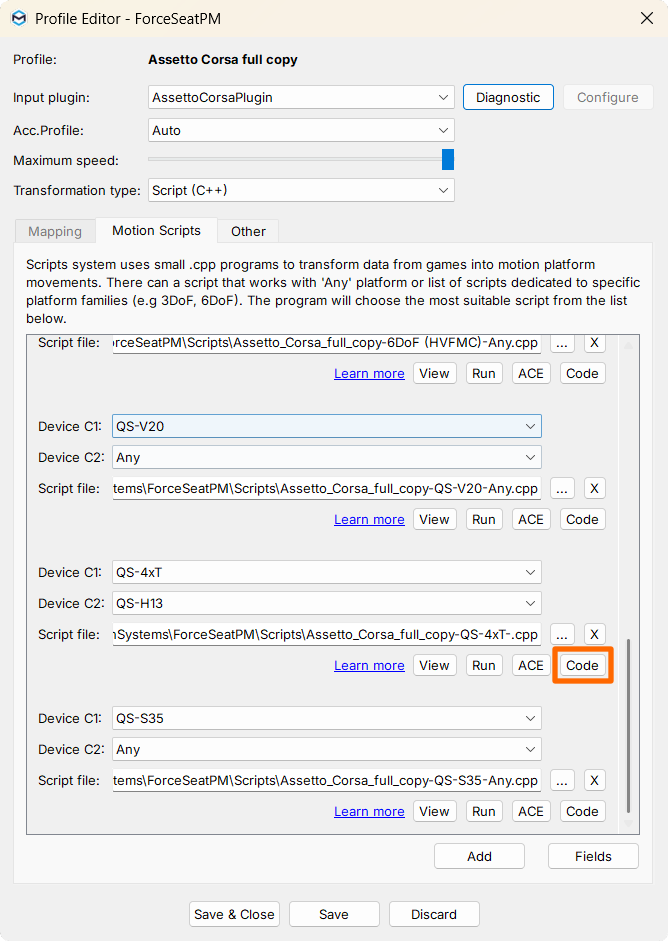
3. In Profile Editor go to Motion Scripts tab and find a script that matches your motion platform.
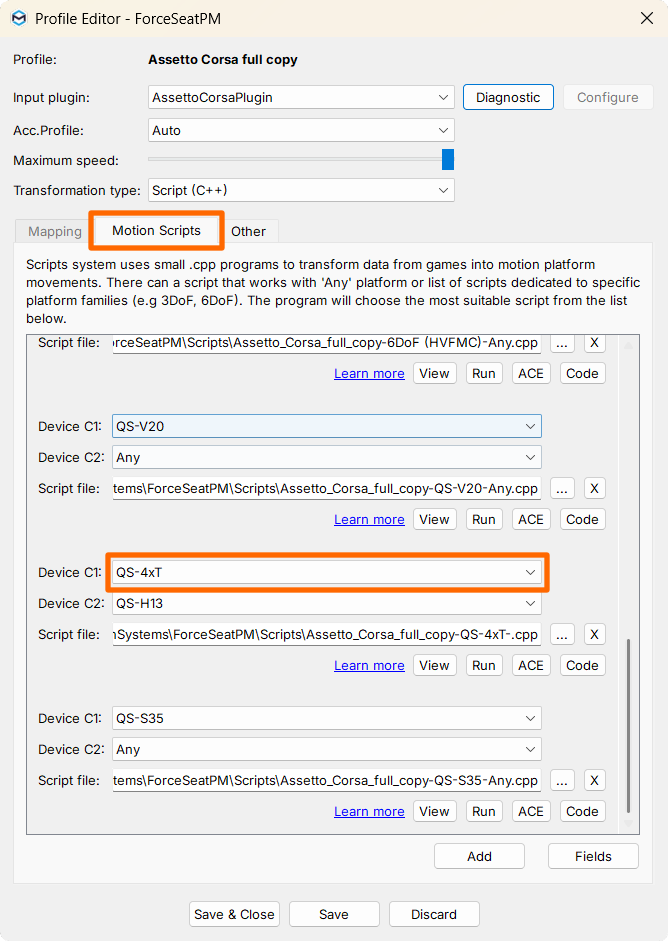

4. Press Run button next to the script to verify that the script works correctly and there are no errors in the the output console.
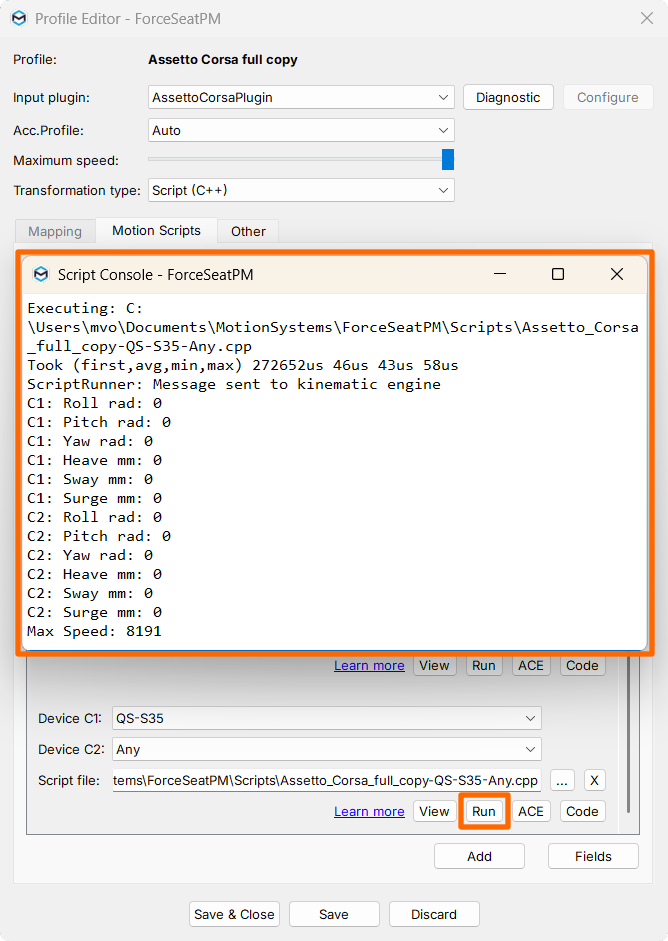
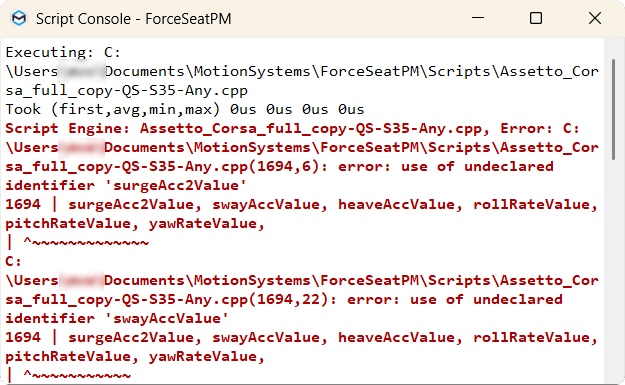
5. Click Code to open the script in Visual Studio Code
4 Coding the script
At this point there are two scenarios:
- If you are editing the script with the game running in the background and you plan to switch (Alt+Tab) between the VSC and game windows (e.g. changed filter parameters), you can close the Profile Editor. Platform manager will detect any changes made to the script and reload it automatically. If there are any syntax errors in the script, details will be displayed in Action Center.
- If you are editing the script without the game running in the background or you want to check the script manually and see results in the output console, then do not close the Profile Editor. You will be checking that by clicking Run button later.
Code completion and content help can be used normally during script development
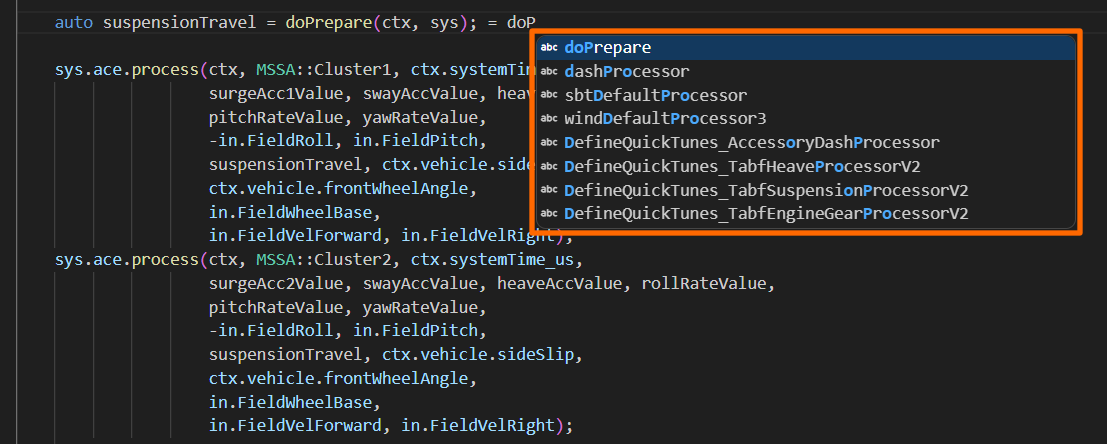
All headers (with embedded comments/documentation) that define scripts API are located in:
C:\Program Files (x86)\MotionSystems\ForceSeatPM\ScriptsAPI
You can browse them from Visual Studio Code.
When you are finished making changes to the script, save them and go to Profile Editor to press Run (or launch the game). If there are any errors, they will be displayed in Action Center or in the Script console (Run button).