
VR HeadWay
VR HeadWay motion compensation - subtracts platform movement from VR headset tracking.
1 Introduction
Motion platform movement alters the position of the entire cockpit, including the driver. VR systems interpret this as actual head movement and apply it to the tracking data. Without compensation, the driver could experience disorientation, discomfort or even nausea (VR sickness). ForceSeatPM uses advanced mathematical formulas to calculate necessary compensation and applies it to the VR headset at its run time. It eliminates platform movements from the VR tracking system making your experiences to be more immersive and authentic. Compensation module is transparent for end users, it can be used with almost all our platforms and level of correction can be adjusted to user individual preferences with a few simple sliders.
2 VR HeadWay activation
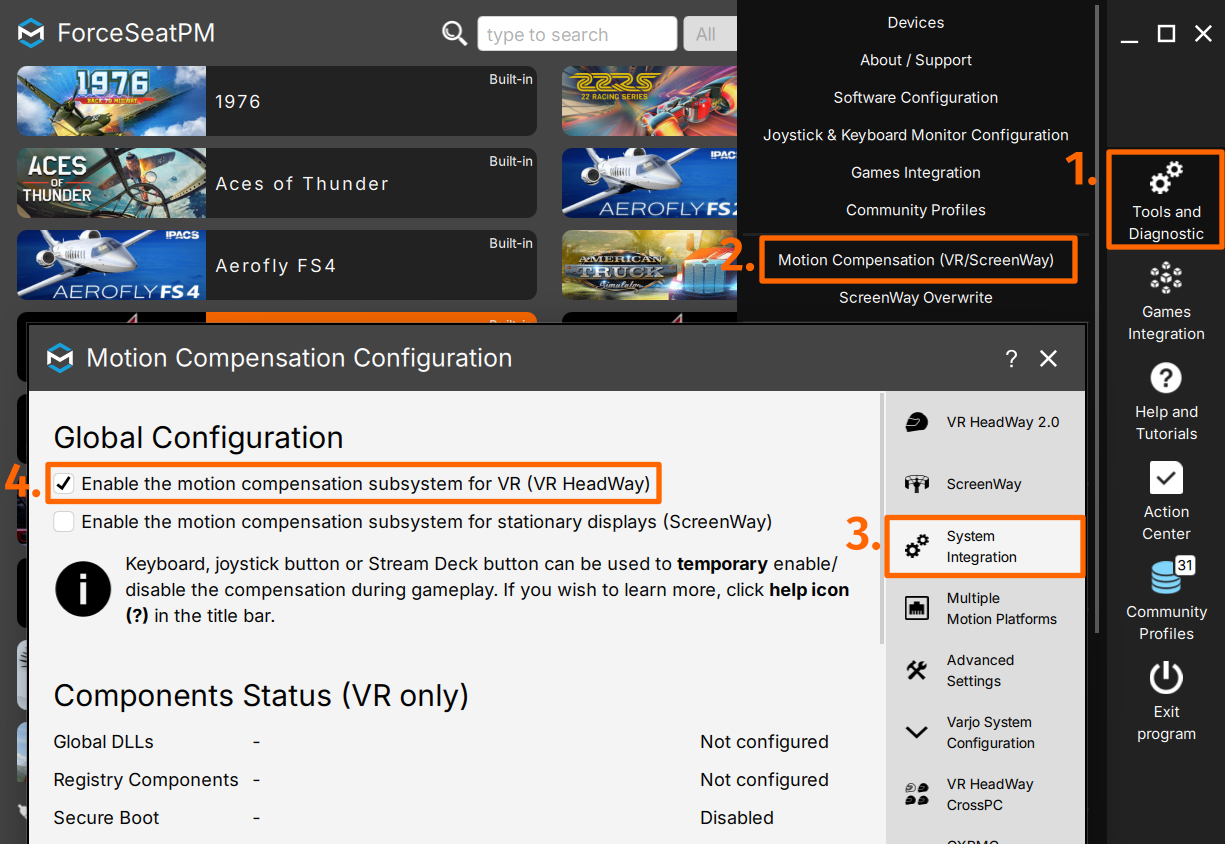
In order to activate VR HeadWay, go to Tools and Diagnostic → Motion Compensation (VR/ScreenWay) → System Integration → select Enable the motion compensation sub- system for VR.
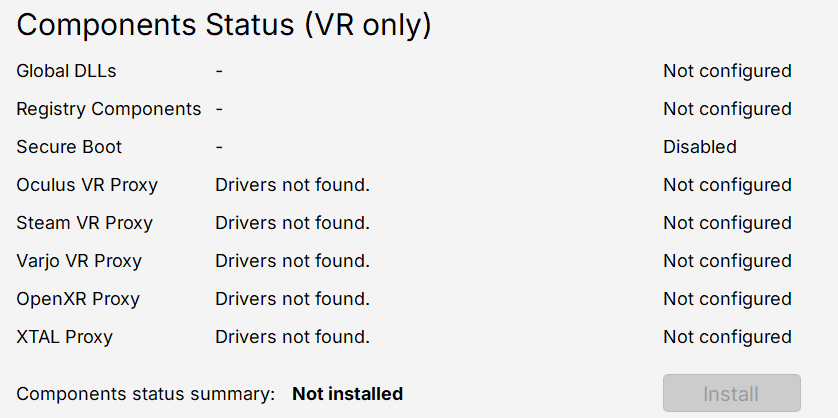
Make sure that all required drivers are installed:
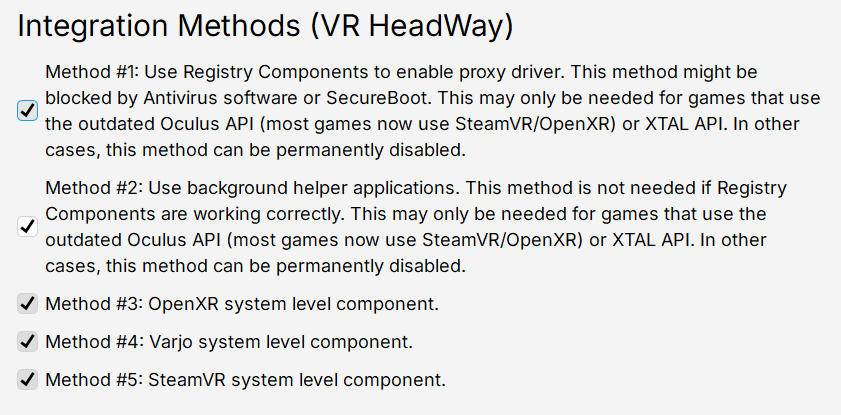
Check if all required integration methods are enabled (they are activated by default):
3 VR HeadWay procedure for mapping the coordinate system
Mapping procedure must take place at first game start at VR mode. Usually once found settings are still correct even after PC cold restart, but in some cases remapping might be needed after power shutdown. You can redo the VR coordinate system mapping at any time.
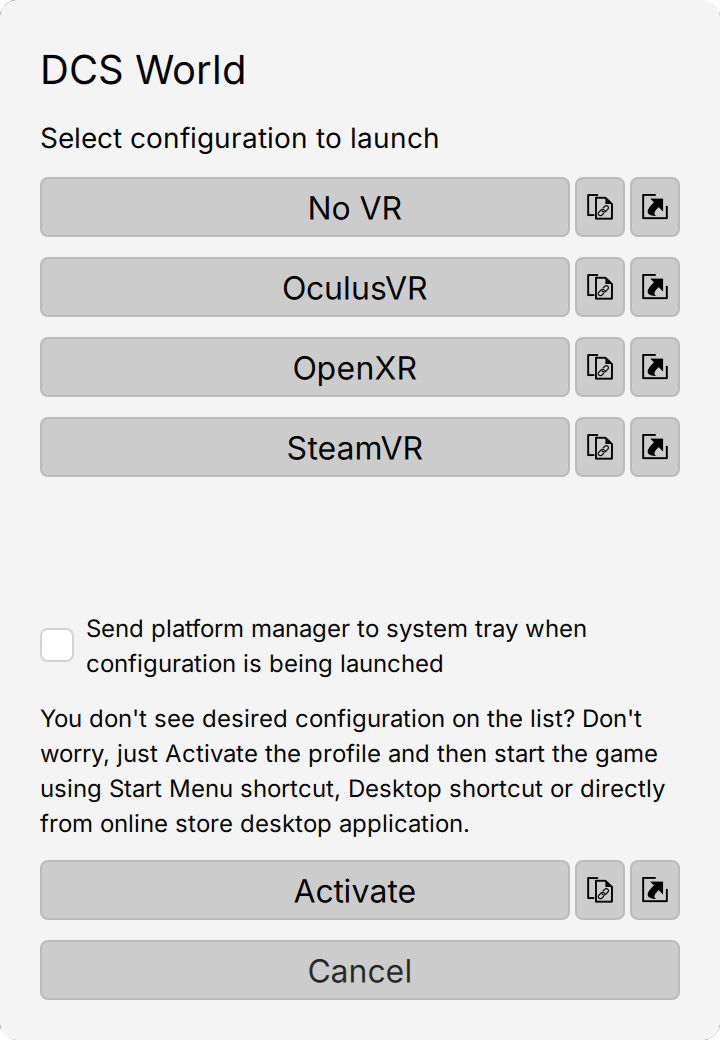
1. Activate profile for a selected game, click Run the game, and on startup window select VR mode. If the game went directly to game session - pause it.
2. Take a seat and put the VR headset on your head.
3. Use keyboard (Win + Shift + O) or gamepad hotkey to begin VR coordinate system mapping procedure. You can configure binding in Software Configuration window. Or click the mapping button at the bottom of the window.

4. It will take a while - platform will perform series of movements and the lector will talk you through it. Make sure that you are not moving your head during mapping process (rest it against the headrest).
5. You can redo the mapping at any time during the gameplay.
4 In-game VR camera zero position
This step should be performed whenever the in-game camera orientation is not correct. Usually, when the game starts, the current position of the VR headset is taken as the zero position. The motion platform usually activates only when the game session starts. As a result, the VR camera in the game is at least shifted vertically. The correction procedure is to lock the motion platform in the center position and reset the in-game camera.
1. Use keyboard, gamepad hotkey or ForceSeatPM/QubicManager's bottom icon to lock the motion platform in centered position (or configure the bindings in Soft- ware Configuration window).

2. Look forward and center VR camera in the game. Check game's user manual for details.
3. Use keyboard, gamepad hotkey or an icon to unlock the motion platform from centered position.
5 Supported VR headsets
- Oculus Rift - Windows PC
- Oculus Rift S - Windows PC
- Oculus Quest - connected via USB to Windows PC
- HTC Vive/HTC Vive Pro/HTC Vive Pro 2 and other HTC models - Windows PC
- VRgineers XTAL - tested with HTC Base Stations in native and SteamVR modes
- Varjo VR-1 - tested with HTC Base Stations in native, SteamVR and OpenXR modes
- Varjo Aero - Windows PC
- Varjo XR-4 - native, SteamVR, OpenXR modes
- HP Reverb G2 - Windows PC
- Other headsets compatible with SteamVR, OpenXR and VarjoAPI
We do not guarantee correct operation for untested devices.
6 Supported motion platforms
- All (*)
(*) PS-2ROT-150 and PS-3ROT-150 require special VR headset equipment to work correctly.